Inserting & swapping media
A Media section displays a single image or video. You can insert a new one from the library or swap an existing one for a different image at any time.
Inserting an image into a new Media section
Section titled “Inserting an image into a new Media section”- Add a Media section to your page (see Adding & removing sections).
- The new section appears as an empty placeholder. Click on it to open the media library.
- The library opens in select mode — browse or search for the image you want.
- Click any thumbnail to insert that image into the section.
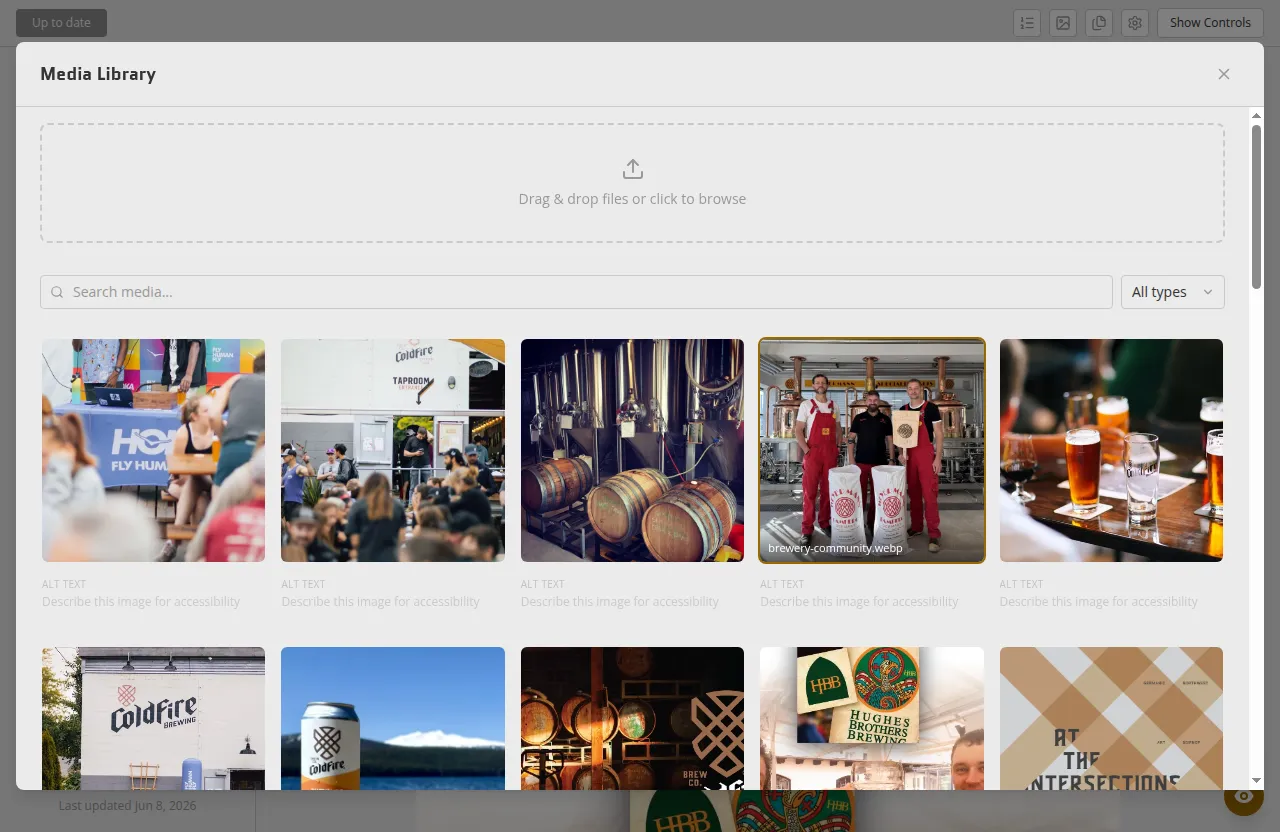
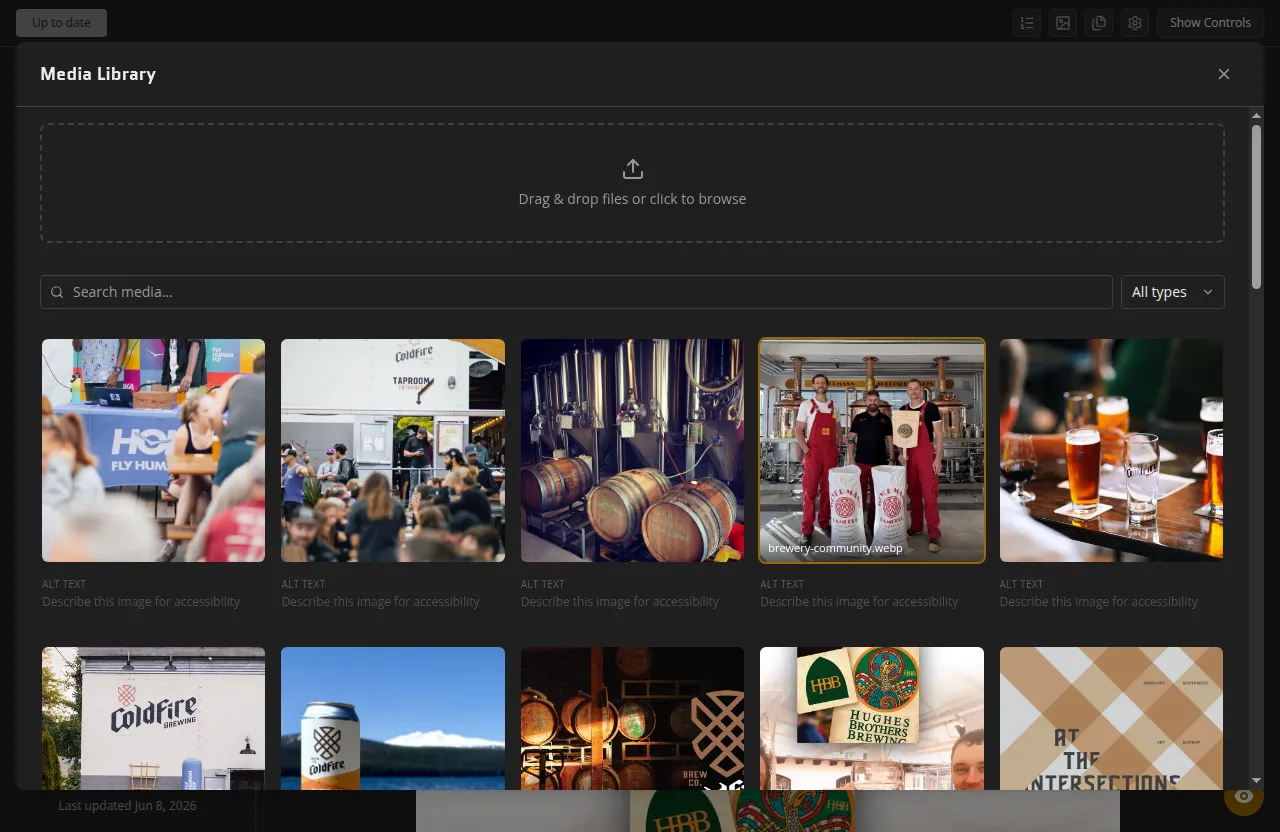
The section updates immediately with your chosen image. The change is saved to your working copy; remember to save or publish when you’re ready to make it live.
Swapping an image
Section titled “Swapping an image”To replace the current image in a Media section with a different one:
- Click anywhere on the image in the editor.
- The media library opens again in select mode.
- Click the thumbnail of the image you want to use instead.
The section switches to the new image right away. The previous image stays in your library — it is not deleted when you swap it out.
Choosing a document
Section titled “Choosing a document”A Document section picks its file the same way, from its settings panel rather than from the page:
- Select the Document section and open Settings.
- On the File tab, click Choose document (or Replace document if one is already set).
- The library opens in select mode showing only documents — images and videos are hidden, and the type filter offers just documents. Click a tile to attach that file.
The panel then shows the file name and size beside the button, so you can confirm you picked the right file. Swapping is the same three steps; the previous document stays in your library.
Uploading and inserting in one step
Section titled “Uploading and inserting in one step”You do not have to upload first. When the library is open in select mode, the upload zone is available at the top of the panel. Drop or pick a file and it will be processed and added to the library. Once processing is complete, the new image appears in the grid and you can click it to insert it.