Logging in
To open the editor, go to yoursite.com/edit. If you are not already signed in, you will be taken to the sign-in screen.
Sign-in methods
Section titled “Sign-in methods”Your site uses one of two sign-in setups, chosen when the site was set up by your developer.
Email and OAuth (Supabase auth)
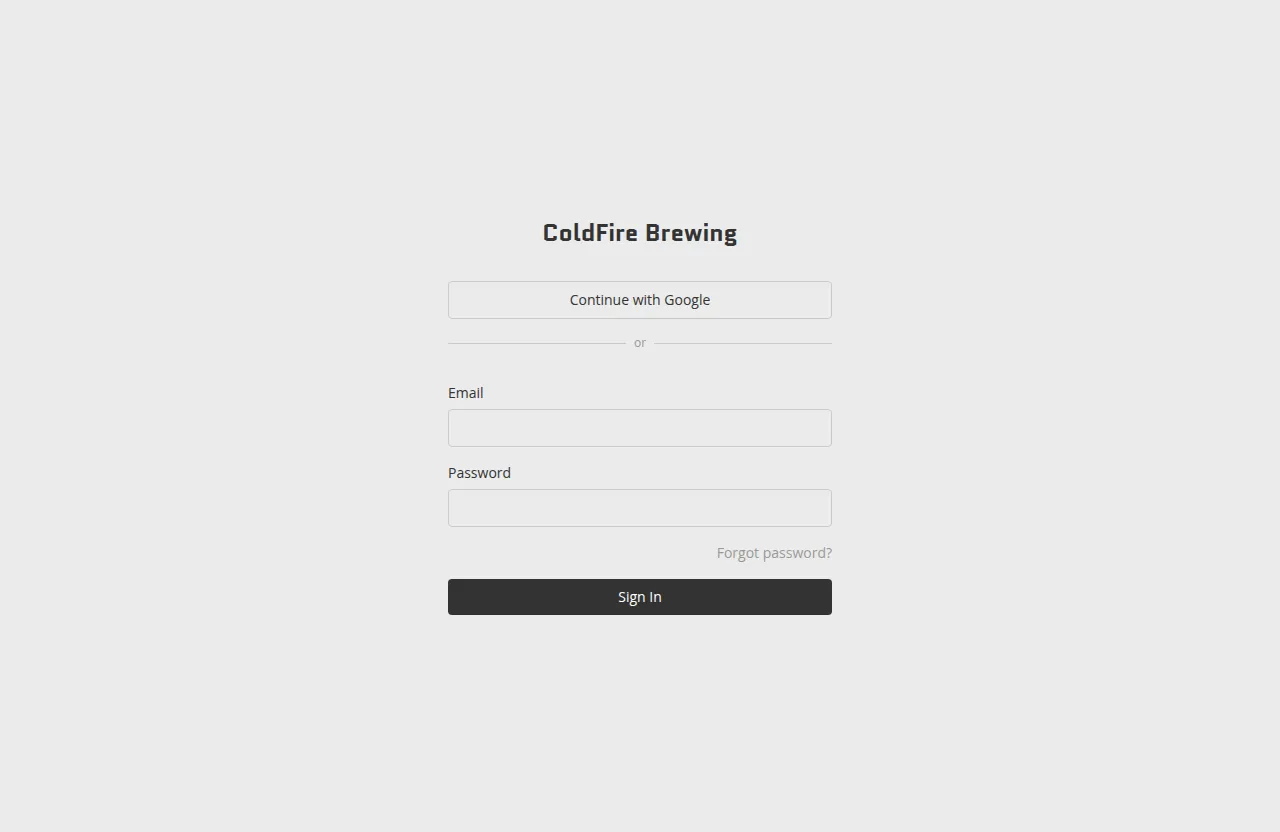
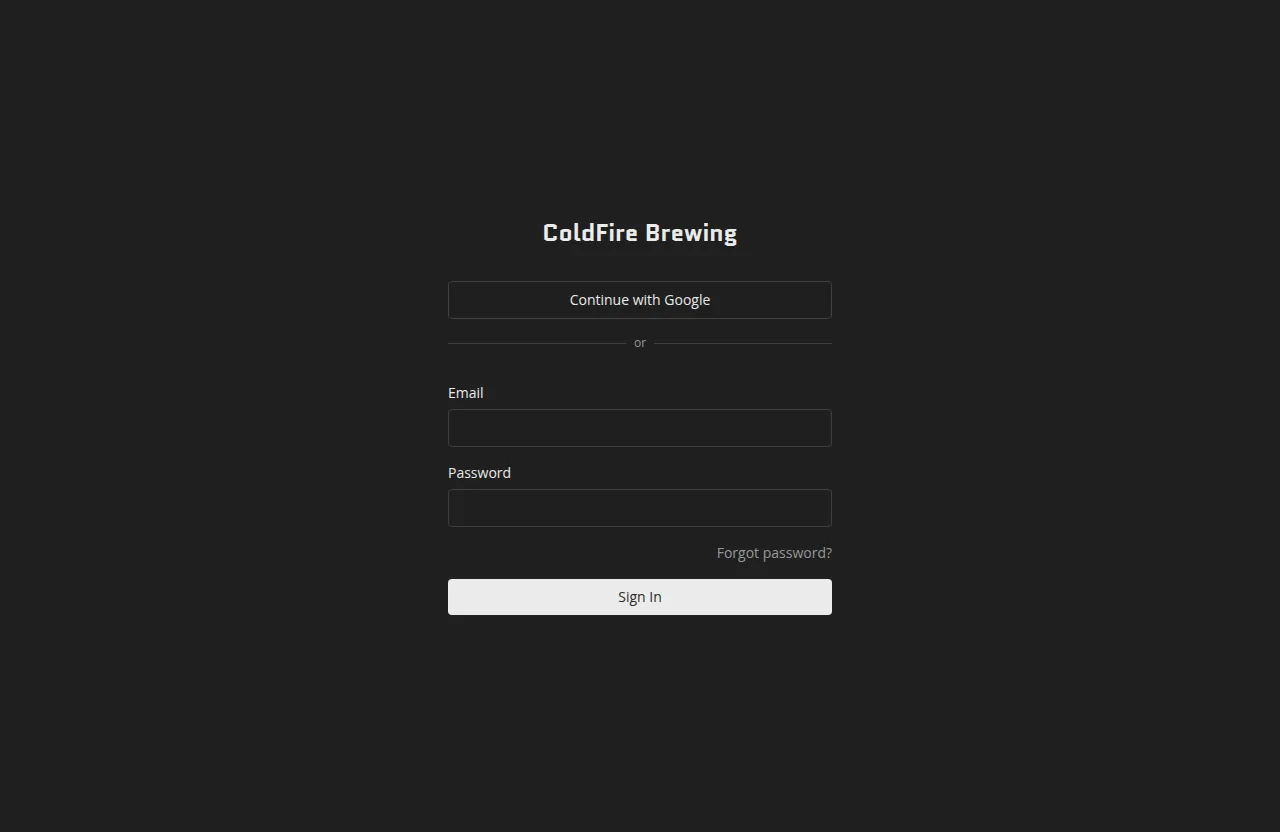
Section titled “Email and OAuth (Supabase auth)”Sites set up with full authentication show a sign-in form with an Email field and a Password field. If your developer has enabled social sign-in, you will also see a Continue with Google or Continue with GitHub button above the form.
To sign in with email and password, enter the address your developer invited you with and the password you set when you accepted the invite. To sign in with Google or GitHub, click the appropriate button and complete the authorization flow in the pop-up. You will be redirected back to your portal once authentication succeeds.
If you have forgotten your password, click Forgot password? beneath the password field. Enter your email address and click Send reset link — you will receive an email with a link to set a new password.
Password only
Section titled “Password only”Some sites use a simpler shared-password setup. The sign-in screen shows only a Password field. Enter the editor password your developer gave you and click Sign In.
First-time access
Section titled “First-time access”If you were invited by your developer, you will receive an email with a setup link. Clicking that link takes you to /edit/set-password, where you can choose your password before signing in for the first time.
Who can edit
Section titled “Who can edit”Access is controlled by your developer. There are two editor roles:
- Owner — full access, including site settings and audience management.
- Editor — can edit content and publish, but does not manage site-level settings.
If you cannot sign in or see a “You don’t have access to this site” message, contact the person who set up your portal.