Editing text
Your brand portal lets you edit text directly on the page — no separate editing panel to switch to. Just click on the text you want to change and start typing.
Clicking to edit
Section titled “Clicking to edit”Heading text (the large title at the top of each section) is plain, unformatted text. Click it once and the cursor appears right in the heading — type your changes and then click anywhere else to finish. There is no toolbar; headings are always a single line of plain text.
Body copy in a Prose section works differently. Click anywhere in the body text to activate the editor. The text cursor appears and you can start typing. When you are done, click anywhere outside the text area to save your changes to your working copy.


Rich-text formatting
Section titled “Rich-text formatting”When you are editing body copy in a Prose section, you can apply formatting by selecting the text you want to change. As soon as you highlight one or more characters, a floating toolbar appears just above your selection.
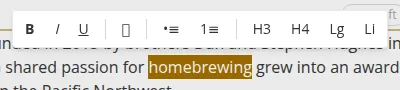
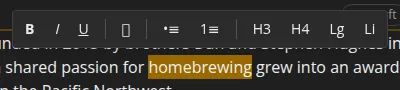
The toolbar offers these controls:
- B — Bold
- I — Italic
- U — Underline
- 🔗 — Link: add or edit a hyperlink on the selected text
- •≡ — Bullet list
- 1≡ — Numbered list
- H3 — Section sub-heading (medium heading)
- H4 — Section sub-sub-heading (smaller heading)
- Lg — Large paragraph (a visually larger body style)
- Li — Lead-in (a bold introductory line style)
Click a button once to apply the style. Click it again to remove it.
Saving your edits
Section titled “Saving your edits”Changes you make to text are saved to your working copy — a local draft held in the browser. They do not go live until you click Save & Publish in the toolbar. You can edit as much as you like and then review everything before committing.
If you want to throw away your unsaved edits, click Discard Changes in the top toolbar (it only appears when you have unsaved changes).