Section settings
Many section types have configurable options — things like column count, display style, and image fit. These are accessed through the section’s settings modal.
Opening settings
Section titled “Opening settings”Hover over any section to reveal its editing controls. If the section has settings available, you will see a gear (⚙) button in the upper-right of the section. Click it to open the settings modal for that section.
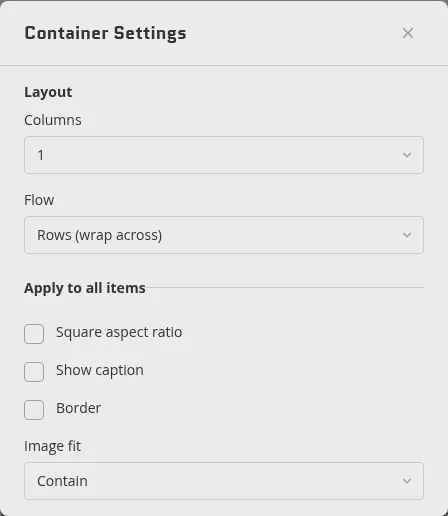
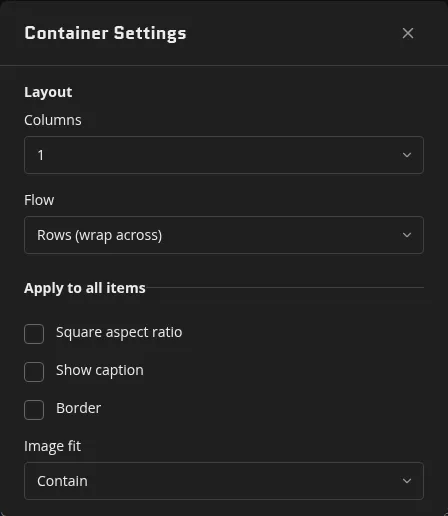
The modal is titled with the section’s type name (for example, “Colors Settings” or “Media Settings”).
What you can change
Section titled “What you can change”Settings vary by section type. Here is what each type offers:
Colors
Section titled “Colors”- Columns — how many color swatches appear per row (2, 3, or 4)
- Label — an optional text label for the color group
- Show label — toggle whether the label is visible
- Collapsing layout — toggle a layout mode that adjusts how swatches stack at smaller sizes
Settings are organized into two tabs:
Display tab
- Square aspect ratio — force the image into a square crop
- Show caption — show the image’s caption below it
- Border — add a subtle border around the image
- Image fit — choose between Contain (the full image fits within the space) or Cover (the image fills the space, cropping the edges)
Link tab
- Link — attach a URL to the image so clicking it navigates somewhere
Container
Section titled “Container”- Layout — Grid (children line up in rows) or Masonry (image gallery — children pack into columns at their natural heights)
- Columns — how many columns the container lays its children across (1–6 for Grid; Masonry needs at least 2)
- Equalize row height — Grid only; stretch every item in a row to the tallest one
- If the children inside the container support shared options (such as image fit for a row of Media sections), an Apply to all items section appears with those shared controls
Icon List
Section titled “Icon List”- Default icon — choose a default icon that applies to all list items without their own icon set
- Show labels — toggle whether item labels are visible
- Stack label above text — when labels are shown, place the label on its own line above the item text
Settings are organized into two tabs:
Source tab
- Choose from library — open the media picker and select an uploaded video
- Paste embed URL — paste a YouTube, Vimeo, or Instagram link; the section fetches or derives its dimensions automatically. For Instagram, an Aspect toggle (9:16 / 4:5 / 1:1) appears so you can correct the guessed ratio
Display tab
- Playback — Click to play (poster + native controls and audio) or Ambient loop (autoplays muted on loop, no controls)
- Show caption — reveal the caption beneath the player (type the caption inline under the video when this is on)
Changes preview live
Section titled “Changes preview live”Settings take effect in your working copy as soon as you change them — you can see the result behind the modal while it is still open. Close the modal when you are satisfied. Changes go live when you save or publish.