How changes go live
When you click Publish or Save & Publish, your changes do not appear on the live site instantly — a short automated process runs first. This page explains what happens and what to expect.
The publish sequence
Section titled “The publish sequence”-
Your changes are written to GitHub. The portal commits your content updates to the site’s GitHub repository. Only the content files you edited (section content, site settings, media) are written — the rest of the repository is untouched.
-
Netlify detects the commit and starts a rebuild. Your site is hosted on Netlify, which watches the repository for new commits. When the publish commit arrives, Netlify automatically kicks off a new build of your site.
-
The live site updates. Once the build finishes, your published content is live and visible to visitors.
The whole sequence typically takes two to four minutes, depending on the size of your site.
Watching the build progress
Section titled “Watching the build progress”The editor toolbar shows live build status while a publish is in progress.
While the build is running, you will see Publishing (m:ss) in orange at the center of the toolbar, with a timer counting up.
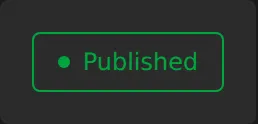
When the build finishes successfully, the status changes to Published in m:ss in green. This message fades away on its own, or you can dismiss it with the × button.
If the build fails, the status shows Publish failed in red.



What to do if publishing seems stuck
Section titled “What to do if publishing seems stuck”Build times vary. If the Publishing timer reaches five minutes or more without completing, something may have gone wrong with the Netlify build.
In that case:
- Check back in a few minutes. Occasional build delays are normal.
- Reload the editor. If the build actually completed while the status indicator was out of sync, reloading will clear it.
- If the problem persists, contact your site administrator. They can check the build log in Netlify directly.
Saving without publishing
Section titled “Saving without publishing”If you are not ready to make your changes live, you can save them as a draft first. See Saving your changes for how to use the Save option to write your work to GitHub without triggering a rebuild.