Saving your changes
When you edit content in the portal, your changes move through two steps before visitors can see them: first they are saved (written to your site’s repository as a draft), and then they are published (made live). Understanding this distinction helps you work confidently without worrying about accidentally sending half-finished content to your live site.
Your working copy
Section titled “Your working copy”As you type and make changes in the editor, your edits are automatically kept in your browser — even before you click Save. This means if your browser tab closes unexpectedly or you step away, your unfinished work is not lost. When you return to the editor, you will see a prompt offering to restore your unsaved changes or start fresh from the last saved state.
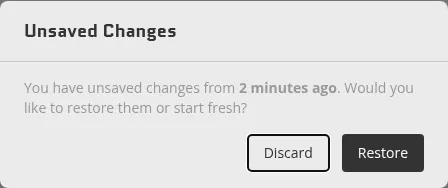
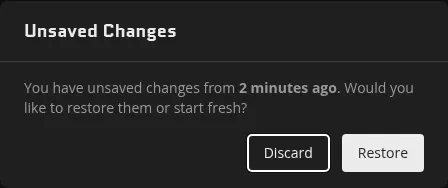
Your edits stay in this browser working copy until you save them.
The save bar
Section titled “The save bar”The save controls appear in the toolbar at the top of the editor. What you see depends on the state of your changes.
When you have unsaved edits
Section titled “When you have unsaved edits”When you have made changes that have not been saved yet, the toolbar shows a Save & Publish button. Clicking it does two things at once: it writes your changes to the site’s GitHub repository and immediately publishes them to your live site.


If you want to save your work without making it live yet, click the small arrow on the right side of the Save & Publish button to reveal a Save option. Choosing Save commits your changes to the repository as a draft — they are safely stored on GitHub but remain invisible to visitors until you publish.
After a save-only action, the toolbar status briefly shows Saved in green to confirm the operation completed.
When changes are saved but not yet published
Section titled “When changes are saved but not yet published”Once you have saved a draft, the button changes to Publish. Your content is in the repository waiting to go live. Clicking Publish promotes that draft to the live site and triggers a rebuild.
When everything is up to date
Section titled “When everything is up to date”When your live site already reflects everything in the repository, the button shows Up to date and is grayed out. There is nothing pending.
Discarding changes
Section titled “Discarding changes”If you have unsaved edits in your browser and want to undo all of them, a Discard Changes button appears next to the save button. Clicking it opens a confirmation prompt. Confirming drops the edits you haven’t saved yet and reloads the editor from your last saved version.
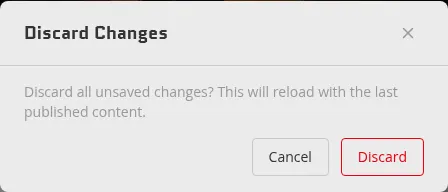
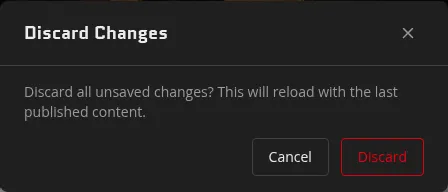
Discarding cannot be undone, so the editor asks you to confirm before proceeding.