Section status
Every section on your portal has a status that controls whether visitors can see it. You can change a section’s status at any time without affecting the rest of the page.
The three statuses
Section titled “The three statuses”A draft section is visible only to you while you are in the editor. Visitors to the published site cannot see it. Use Draft when you are working on content that is not ready to share — you can build it out, preview how it looks, and change it to Live when you are satisfied.
A live section is visible to visitors (subject to any audience restrictions you have set). When you save and publish your changes, live sections appear on the site.
Archived
Section titled “Archived”An archived section is hidden from visitors, like Draft, but it stays in the editor so you can bring it back later. Use Archived for content you want to keep but not show right now — a seasonal section, a campaign that has ended, or anything you might need again.
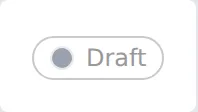
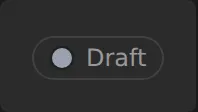
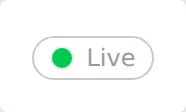
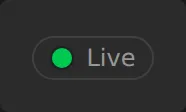
A section’s status indicator in each state.
Changing a section’s status
Section titled “Changing a section’s status”Hover over a section to reveal its editing controls. In the header bar at the top of the section you will see a small status pill — it shows the current status by name. Click it to open a menu with all three options and select the one you want.
The change takes effect in your working copy immediately. It goes live when you save or publish.
The modified indicator
Section titled “The modified indicator”When you have made content changes to a section that you have not yet published, the status pill shows a second orange dot alongside the status color. This is the “modified” indicator — it is not a status you choose, just a reminder that the section has unpublished content edits. The orange dot disappears once your changes are saved and published.
If you are looking at the status pill and see two dots, the left dot is the status currently live on the site and the right dot is the status you have set in your working copy. For example, a green dot followed by a grey dot means the section is Live on the published site but you have switched it to Draft and not yet saved.