Adding & removing sections
You can add new sections anywhere on the page and remove ones you no longer need, without touching any code.
Adding a section
Section titled “Adding a section”Each section on the page has a + (add) button that becomes visible when you hover over it. The button sits to the upper-left of the section on wide screens, or just below the drag handle on smaller screens.
- Click the + button to insert a new section immediately below that section.
- Alt-click (or Option-click on a Mac) to insert the new section immediately above it instead.
After you click, a section-type picker opens in-line at that position. It shows all the available section types as a grid of buttons — choose one to insert it.
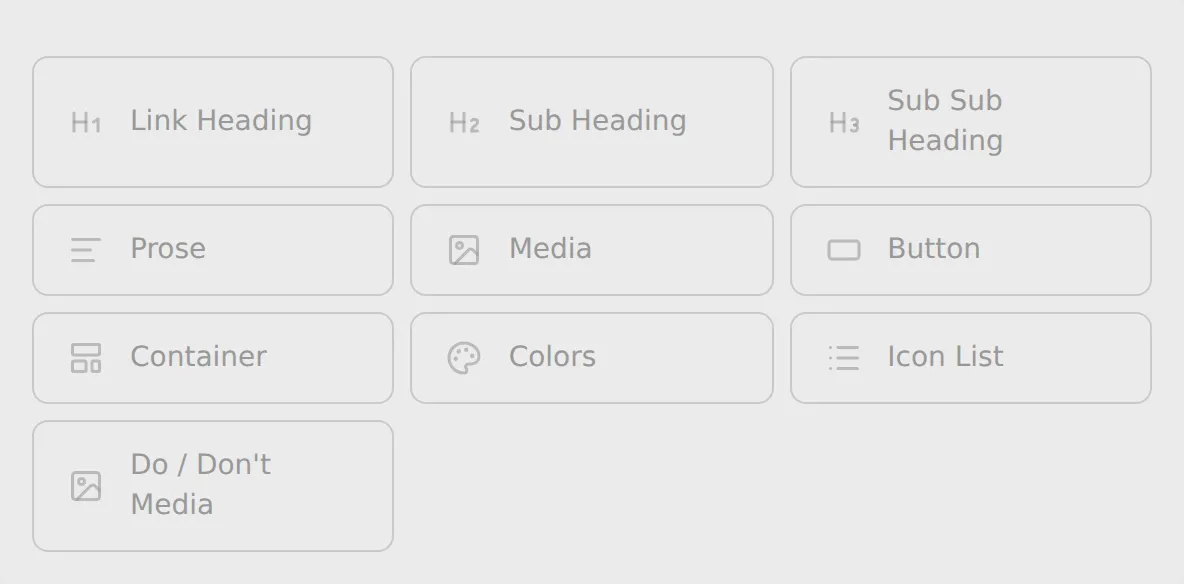
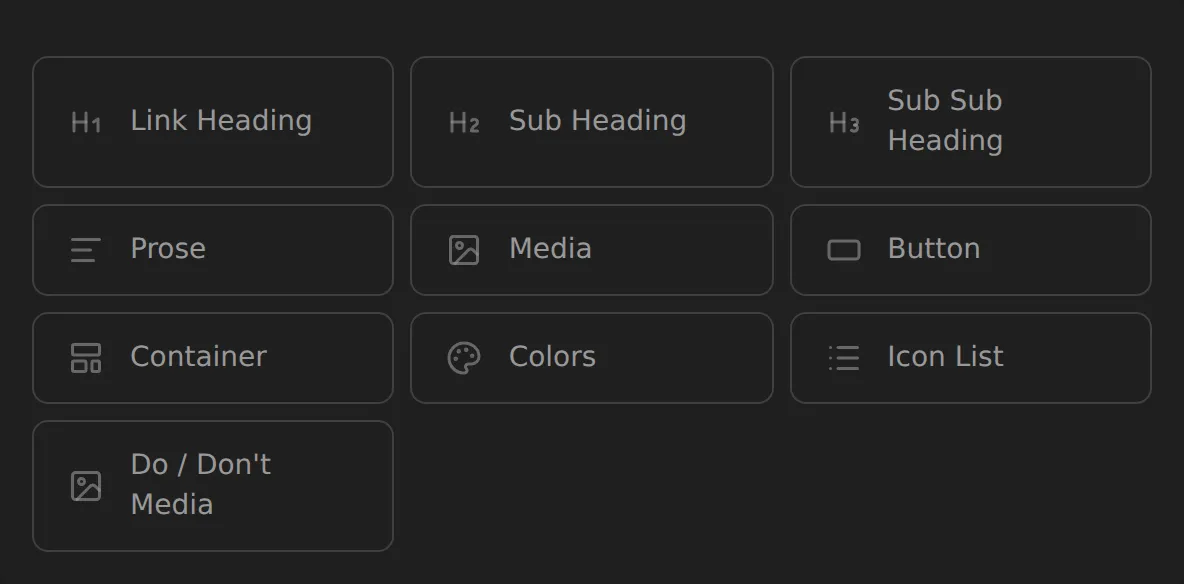
The new section is added with placeholder content so you can see what it looks like before you fill it in. Edit its text and settings just like any other section, then save when you are ready.
Removing a section
Section titled “Removing a section”To delete a section, hover over it to reveal its editing controls, then click the Delete button (the trash icon) in the upper-right of the section.
A confirmation dialog appears:
Delete this section? It will be removed from the page now and deleted permanently when you save or publish.
Click Delete to confirm, or Cancel to go back. The section disappears from the page immediately in your working copy. It is only permanently removed from your site when you save or publish.
Blocks inside a container
Section titled “Blocks inside a container”A Container section holds smaller blocks side by side in columns. Its controls include an extra Add block button, which opens the same type picker to add a block inside the container.
Hover over a block to reveal a small vertical rail on its left with a drag handle, a Column span control (how many columns the block occupies), settings where the block has them, Duplicate block and Delete block. Duplicating inserts a copy immediately after the original; deleting a block asks for confirmation just like deleting a section.