This is the full developer documentation for Brand Portal
# Portal Docs
> A GitHub-backed WYSIWYG site builder for brand guides and asset libraries.
[Editor Guide ](/editor/getting-started/your-brand-portal/)Edit your brand portal: text, sections, media, audiences, and publishing — no code.
[Developer Docs ](/developer/overview/what-the-portal-is/)Provision and run a client site, or work on the framework packages and internals.
# For AI agents
> Orientation for a coding agent doing development on the portal framework or a client site.
This page orients a coding agent that has been pointed at a Brand Portal codebase. If you are a human, [What the portal is](/developer/overview/what-the-portal-is/) and [Architecture](/developer/overview/architecture/) are a better start.
## Ingest the whole docs in one request
[Section titled “Ingest the whole docs in one request”](#ingest-the-whole-docs-in-one-request)
This site publishes the [llms.txt](https://llmstxt.org/) standard:
* [**`/llms.txt`**](/llms.txt) — a structured index of every page, with links and one-line summaries.
* [**`/llms-full.txt`**](/llms-full.txt) — the entire documentation set concatenated as one Markdown file. Fetch this to load all developer and editor docs into context at once.
## Which codebase are you in?
[Section titled “Which codebase are you in?”](#which-codebase-are-you-in)
Two very different contexts share these docs — identify yours first:
1. **A client site repo** (e.g. `acme-portal`) — content and configuration only; the framework comes from the published `@drawnagency/*` packages. Most “build or run a site” tasks live here. Start with [Building a client site](/developer/building-a-client-site/provisioning/).
2. **The framework monorepo** (`Drawn-Agency/portal`) — the five packages plus the dev, admin, and docs apps. Start with [Monorepo & dev workflow](/developer/framework-internals/monorepo-and-dev-workflow/).
## Rules that will bite you if you ignore them
[Section titled “Rules that will bite you if you ignore them”](#rules-that-will-bite-you-if-you-ignore-them)
* **Use pnpm.** The monorepo enforces it with a `preinstall` `only-allow pnpm` hook; client repos are pnpm-based too (`.npmrc` + committed lockfile) but without that hook. Either way `npm`/`yarn` break the setup — always use pnpm.
* **The editor import chain must be browser-safe.** `portal.config.mjs` and `src/sections.ts` are bundled into the hydrated editor island. No `node:*`, `Buffer`, server adapters, or unguarded `process.env`. See [Building custom sections](/developer/framework-internals/building-custom-sections/) and [SSR / Netlify gotchas](/developer/framework-internals/ssr-netlify-gotchas/).
* **Publish packages via `scripts/publish.sh` (which uses `pnpm publish`), never `npm publish`.** npm publishes `workspace:*` dependencies literally and silently breaks every consumer install. See [Publishing packages](/developer/framework-internals/publishing-packages/).
* **The docs site (`apps/docs`) must not import `@drawnagency/*`** — not even as types — so it builds independently of package `dist`. Reference the packages in prose and code fences only, never as a real `import`.
* **Custom section types register via root `src/sections.ts`**, not the `sections` config field. See [Building custom sections](/developer/framework-internals/building-custom-sections/).
## Common tasks → start here
[Section titled “Common tasks → start here”](#common-tasks--start-here)
| You want to… | Page |
| ------------------------------ | ----------------------------------------------------------------------------------------------------------------------------------------------------- |
| Stand up a new client site | [Provisioning a new site](/developer/building-a-client-site/provisioning/) |
| Configure a site | [Configuration](/developer/building-a-client-site/configuration/) · [Config reference](/developer/reference/config-reference/) |
| Add a custom section type | [Building custom sections](/developer/framework-internals/building-custom-sections/) |
| Understand how rendering works | [Architecture](/developer/overview/architecture/) |
| Run the monorepo locally | [Monorepo & dev workflow](/developer/framework-internals/monorepo-and-dev-workflow/) |
| Publish a package release | [Publishing packages](/developer/framework-internals/publishing-packages/) |
| Wire auth & audiences | [Auth & audiences setup](/developer/building-a-client-site/auth-audiences-setup/) |
| Set environment variables | [Environment variables](/developer/building-a-client-site/environment-variables/) · [reference](/developer/reference/environment-variable-reference/) |
# Auth & audiences setup
> Wire up Supabase auth and configure viewer audiences.
The portal supports two authentication modes: `supabase` (OAuth and email/password, with in-app audience management) and `password` (bcrypt-hashed secrets in environment variables, a developer fallback). Use `supabase` for all real deployments.
## Choosing a mode
[Section titled “Choosing a mode”](#choosing-a-mode)
Set `AUTH_PROVIDER` in your `.env` (or in the Netlify environment variables):
```plaintext
AUTH_PROVIDER=supabase
```
Omit `AUTH_PROVIDER` or set it to `password` to use password-only auth. In password mode, audiences are defined entirely by the `VIEWER__PASSWORD` environment variables — they cannot be managed in the editor UI.
## Supabase mode
[Section titled “Supabase mode”](#supabase-mode)
### Shared Supabase project
[Section titled “Shared Supabase project”](#shared-supabase-project)
All client sites share **one** Supabase project. Every `*.drawn.guide` site does OAuth, invite, and password-reset flows against the same Auth instance. The three required env vars are the same across all client sites:
```plaintext
SUPABASE_URL=https://your-project.supabase.co
SUPABASE_ANON_KEY=your-anon-key
SUPABASE_SERVICE_ROLE_KEY=your-service-role-key
```
### Default audience
[Section titled “Default audience”](#default-audience)
Each site has a default viewer audience seeded at site creation. The `isDefault` flag is a Supabase-only concept — it marks the audience that viewers fall into when they authenticate without being assigned to a named audience. This is set in the database at provisioning time and does not appear in password-mode sites.
### Critical Supabase dashboard configuration
[Section titled “Critical Supabase dashboard configuration”](#critical-supabase-dashboard-configuration)
The following rules apply to the **Supabase dashboard** (the production source of truth). Do not apply them via `supabase config push` — the monorepo’s `supabase/config.toml` has `site_url` set to localhost and would clobber production settings.
**Site URL — set to a single concrete origin:**
```plaintext
https://acme.drawn.guide
```
Wildcards are rejected in the Site URL field and a wildcard entry silently breaks the fallback path for every site. Pick one concrete domain as the Site URL (typically the main client site or the first site created).
**Redirect URL allow-list — restrict to platform-controlled paths:**
```plaintext
https://*.drawn.guide/edit/login
https://*.drawn.guide/edit/login/callback
```
These are the only two paths any auth flow redirects to: OAuth and invite/reset flows use `/edit/login/callback`; the existing-user invite login link uses `/edit/login`. Path-restricting the allow-list means a wildcard subdomain entry cannot be abused to redirect to an arbitrary page on any `drawn.guide` subdomain.
**Never add a bare `*.netlify.app` entry.** `netlify.app` is a shared hosting domain — any Netlify tenant could register a subdomain and become a valid redirect target in your allow-list, enabling an open-redirect attack that could steal auth codes.
### OAuth redirect\_to
[Section titled “OAuth redirect\_to”](#oauth-redirect_to)
The portal builds the OAuth `redirect_to` parameter from the **live request origin**, not from the build-time `SITE` environment variable. This is required because Netlify’s `URL` environment variable (which Astro bakes into `import.meta.env.SITE`) can resolve to the `*.netlify.app` host instead of the custom domain — making `redirect_to` unmatched in the allow-list and landing the PKCE callback on a different origin from where the verifier cookie was set.
Any custom auth flow you add must derive its redirect origin from the incoming request, not from `import.meta.env.SITE`.
## Password mode
[Section titled “Password mode”](#password-mode)
In password mode, audiences are defined by environment variables. Each audience needs a name (the `` suffix), a bcrypt password hash, and optionally a display color:
```plaintext
VIEWER_INTERNAL_PASSWORD=\$2b\$10\$...
VIEWER_INTERNAL_COLOR=#10b981
VIEWER_EXTERNAL_PASSWORD=\$2b\$10\$...
VIEWER_EXTERNAL_COLOR=#3b82f6
```
See [Environment variables](/developer/building-a-client-site/environment-variables/) for the bcrypt hash generation command and the `\$`-escaping requirement.
Audience settings are read-only in the editor UI when running in password mode. To add or remove an audience, edit the environment variables and redeploy.
# Configuration
> portal.config.mjs and site-config.json.
Client site configuration lives in two files: `portal.config.mjs` wires up the runtime providers, and `src/content/site-config.json` controls the brand presentation.
## portal.config.mjs
[Section titled “portal.config.mjs”](#portalconfigmjs)
`portal.config.mjs` is the entry point for the portal framework. It must import `defineConfig` from `@drawnagency/core/config` — **not** the root `@drawnagency/core` export, which includes Node-only integration code and will break in the browser during editor hydration.
```js
import { defineConfig, supabaseDeployStatus } from "@drawnagency/core/config";
import { supabaseAuth } from "@drawnagency/auth-supabase";
import { githubStorage } from "@drawnagency/github";
export default defineConfig({
auth: supabaseAuth(),
storage: githubStorage(),
deployStatus: supabaseDeployStatus(),
site: { name: "Acme Brand Portal" },
});
```
To add your own section types, create a `src/sections.ts` file at the repo root — see [Building custom sections](/developer/framework-internals/building-custom-sections/). You can optionally also pass that array to `defineConfig`’s `sections` field for a type-check, but registration happens through `src/sections.ts` regardless of the config field.
### Top-level keys
[Section titled “Top-level keys”](#top-level-keys)
| Key | Description |
| -------------- | ---------------------------------------------------------------------------------------------------------------------------------------------------------------------------------------------------------------------------------------------------- |
| `auth` | Authentication provider. `supabaseAuth()` for OAuth + email/password; see [Auth & audiences setup](/developer/building-a-client-site/auth-audiences-setup/). |
| `storage` | Content storage backend. `githubStorage()` saves edits back to the GitHub repository. |
| `deployStatus` | Deploy status provider. `supabaseDeployStatus()` exposes Netlify build state in the editor UI. |
| `sections` | Optional, **type-only**. Custom section types register from a root `src/sections.ts` file, not this field — see [Building custom sections](/developer/framework-internals/building-custom-sections/). Passing the array here only adds a type-check. |
| `site.name` | The site’s display name, shown in the editor header and page ``. |
## src/content/site-config.json
[Section titled “src/content/site-config.json”](#srccontentsite-configjson)
`site-config.json` controls brand presentation — colors, typography, and media pipeline settings. The provisioner writes this file when creating a new site; update it manually or via the `/populate-site` skill.
```json
{
"siteName": "Brand Portal",
"primaryColor": "#a84300",
"primaryContrast": "#f0f0f0",
"darkMode": "dark",
"headingFont": "system-ui",
"bodyFont": "system-ui",
"googleFontsUrl": null,
"media": {
"adapter": "github",
"sizes": [640, 1080, 1920],
"maxFileSize": 5242880,
"quality": 85
}
}
```
### Fields
[Section titled “Fields”](#fields)
| Field | Type | Description |
| ------------------- | ------------------------------------- | ----------------------------------------------------------------------------- |
| `siteName` | string | Site display name (used in metadata and editor UI). |
| `primaryColor` | string | Brand primary color as a 6-digit hex (`#RRGGBB`). |
| `primaryContrast` | string | Text color that contrasts with `primaryColor`, as a 6-digit hex. |
| `darkMode` | `"light"` \| `"dark"` \| `"optional"` | Color scheme. `"optional"` respects the viewer’s OS preference. |
| `headingFont` | string | CSS font-family value for headings. Use `"system-ui"` or a Google Font name. |
| `bodyFont` | string | CSS font-family value for body text. |
| `googleFontsUrl` | string \| `null` | Full `https://fonts.googleapis.com/css2?...` URL, or `null` for system fonts. |
| `media.adapter` | string | Storage backend for media. Always `"github"` for current sites. |
| `media.sizes` | number\[] | Output widths (px) for processed images. Default: `[640, 1080, 1920]`. |
| `media.maxFileSize` | number | Maximum upload size in bytes. Default: `5242880` (5 MB). |
| `media.quality` | number | WebP compression quality (1–100). Default: `85`. |
For the full reference of every accepted field and its validation rules, see the [Config reference](/developer/reference/config-reference/).
# Deploying to Netlify
> Connect the repo to Netlify and go live.
Portal sites deploy to Netlify as SSR sites using the Netlify adapter. Each client site is its own Netlify site connected to its own GitHub repository.
## Connect the repository
[Section titled “Connect the repository”](#connect-the-repository)
1. In the [Netlify dashboard](https://app.netlify.com), click **Add new site → Import an existing project**.
2. Authorize GitHub and select the client repository.
3. Netlify will detect the Astro project automatically. Verify the build settings:
* **Build command:** `pnpm run build`
* **Publish directory:** `.netlify` (set by the Netlify adapter)
4. Click **Deploy site**.
The first build will fail if env vars are not yet set. Set them before deploying, or trigger a new deploy after setting them.
## Set environment variables
[Section titled “Set environment variables”](#set-environment-variables)
In the Netlify dashboard, go to **Site configuration → Environment variables** and add the same variables from your local `.env`:
* `GITHUB_TOKEN`, `GITHUB_OWNER`, `GITHUB_REPO`
* `SESSION_SECRET`
* `AUTH_PROVIDER` (if using Supabase)
* `SUPABASE_URL`, `SUPABASE_ANON_KEY`, `SUPABASE_SERVICE_ROLE_KEY` (if using Supabase)
* `ADMIN_PASSWORD`, `EDITOR_PASSWORD`, viewer passwords (if using password mode)
* `SITE` — **pin to the custom domain** (see below)
## Pin SITE to the custom domain
[Section titled “Pin SITE to the custom domain”](#pin-site-to-the-custom-domain)
Set `SITE` to the site’s custom domain:
```plaintext
SITE=https://acme.drawn.guide
```
`SITE` is used by invite and password-reset emails to build absolute URLs. Netlify’s built-in `URL` variable can resolve to the `*.netlify.app` subdomain instead of the custom domain — so an explicit `SITE` is required. The provisioner sets this automatically for new sites; for existing sites, add it manually.
## Add a custom domain
[Section titled “Add a custom domain”](#add-a-custom-domain)
1. In the Netlify dashboard, go to **Domain management → Add a domain**.
2. Enter the client’s domain (e.g. `acme.drawn.guide`).
3. Update the DNS records as prompted.
4. Wait for the domain to become primary (shown as “Primary domain” in the Netlify dashboard).
Once the custom domain is primary, Netlify’s `URL` variable resolves correctly and OAuth redirect flows work as expected.
## Commit the lockfile
[Section titled “Commit the lockfile”](#commit-the-lockfile)
Netlify installs dependencies with a **frozen lockfile** (`pnpm install --frozen-lockfile`). The committed `pnpm-lock.yaml` is the source of truth for what gets installed — always commit it alongside `package.json` whenever you update dependencies.
If you forget to commit the lockfile after an update, the Netlify build will fail with a lockfile mismatch error.
## Subsequent deploys
[Section titled “Subsequent deploys”](#subsequent-deploys)
Push to the main branch to trigger a new Netlify build and deploy. No additional configuration is needed — Netlify rebuilds the site automatically on every push to `main`. The client template does not include its own CI workflows; automated tests and linting live in the framework monorepo, not the client repo.
See [Updating packages](/developer/building-a-client-site/updating-packages/) for how `@drawnagency` package updates reach the site.
# Environment variables
> What each runtime env var does.
Copy `.env.example` to `.env` and fill in the values before running the dev server or deploying. All variables listed here are read at runtime by the Netlify function — none are baked into the static build.
## GitHub
[Section titled “GitHub”](#github)
| Variable | Required | Description |
| -------------- | -------- | ---------------------------------------------------------------------------------------------------------------------------------------------------------------------------------------------- |
| `GITHUB_TOKEN` | Yes | Fine-grained personal access token with **read/write** access to the client repo’s **Contents**, plus the mandatory read-only **Metadata** permission. Scoped to the single client repository. |
| `GITHUB_OWNER` | Yes | GitHub organization or username that owns the client repo. |
| `GITHUB_REPO` | Yes | Repository name (without the owner prefix). |
## Auth core
[Section titled “Auth core”](#auth-core)
| Variable | Required | Description |
| ---------------- | -------- | ----------------------------------------------------------------------------------------- |
| `SESSION_SECRET` | Yes | Random string used to sign session cookies. Must be at least 32 characters. Generate one: |
```bash
node -e "console.log(require('crypto').randomBytes(32).toString('hex'))"
```
| Variable | Required | Description |
| --------------- | -------- | ------------------------------------------------------------------- |
| `AUTH_PROVIDER` | No | `password` (default) or `supabase`. Omit to use password-only auth. |
## Password mode
[Section titled “Password mode”](#password-mode)
Used when `AUTH_PROVIDER=password` (or `AUTH_PROVIDER` is unset). All `*_PASSWORD` values are **bcrypt hashes**, not plaintext.
| Variable | Required | Description |
| ------------------------ | ------------------- | ------------------------------------------------------------------------------------------------------------------------------------------------------------ |
| `ADMIN_PASSWORD` | Yes (password mode) | Bcrypt hash for the site owner account. |
| `EDITOR_PASSWORD` | Yes (password mode) | Bcrypt hash for editor accounts. |
| `VIEWER_<NAME>_PASSWORD` | No | Bcrypt hash for a named viewer audience. `<NAME>` becomes the audience name (e.g. `VIEWER_INTERNAL_PASSWORD`). Optional — add one per gated viewer audience. |
| `VIEWER_<NAME>_COLOR` | No | Hex color for the named audience badge in the editor UI (e.g. `VIEWER_INTERNAL_COLOR=#10b981`). |
### Generating a bcrypt hash
[Section titled “Generating a bcrypt hash”](#generating-a-bcrypt-hash)
```bash
node -e "console.log(require('bcryptjs').hashSync('your-password', 10))"
```
**Critical — escape every `$` in the hash with a backslash.** Vite runs `dotenv-expand`, which interprets `$name` as a variable reference and silently strips it, corrupting the hash. Quoting the value does NOT prevent this; only `\$` does.
```plaintext
# bcryptjs gives you:
$2b$10$n1JHs0z5qYC.ISZG...
# Write in .env as:
ADMIN_PASSWORD=\$2b\$10\$n1JHs0z5qYC.ISZG...
```
**Second gotcha: no leading whitespace before the key name.** dotenv silently skips indented lines, so every sign-in attempt will fail with “Invalid password” — with no error in the logs.
## Supabase mode
[Section titled “Supabase mode”](#supabase-mode)
Used when `AUTH_PROVIDER=supabase`.
| Variable | Required | Description |
| --------------------------- | ------------------- | ------------------------------------------------------------------------ |
| `SUPABASE_URL` | Yes (supabase mode) | Your Supabase project URL, e.g. `https://your-project.supabase.co`. |
| `SUPABASE_ANON_KEY` | Yes (supabase mode) | Supabase anon (public) key. Safe to include in the build. |
| `SUPABASE_SERVICE_ROLE_KEY` | Yes (supabase mode) | Supabase service role key. **Server-only** — never expose to the client. |
The optional `SUPABASE_ACCOUNT_TOKEN` and `SUPABASE_PROJECT_REF` variables are only needed when running Supabase migrations via the CLI (`pnpm db:push`) — they are not required at runtime.
## Deploy
[Section titled “Deploy”](#deploy)
| Variable | Required | Description |
| -------- | ------------------------------- | ----------------------------------------------------------------------------------------------------------------------------------------------------------------------------------------------------------------------- |
| `SITE` | Yes (Supabase mode, production) | The canonical origin of the site, e.g. `https://acme.drawn.guide`. Required in Supabase mode — used by invite and password-reset emails. Not needed in password-only mode. Set in the Netlify dashboard, not in `.env`. |
`SITE` must be pinned to the custom domain — **not** the `*.netlify.app` subdomain. It is used by invite and password-reset emails. Netlify’s built-in `URL` environment variable can resolve to the Netlify subdomain instead of the custom domain, so an explicit `SITE` is required.
This variable is set by the provisioner when creating the site. For existing sites built before this was introduced, set it manually in the Netlify dashboard and trigger a redeploy.
For the exhaustive list of every variable and its validation rules, see the [Environment variable reference](/developer/reference/environment-variable-reference/).
# Media pipeline
> How images are processed and served.
The portal media pipeline converts raw uploaded images into optimized WebP variants, stores them in the GitHub repository, and serves them through a Netlify CDN-cached API route. Understanding this pipeline is useful when debugging media display issues or adding images manually.
## Processing
[Section titled “Processing”](#processing)
Images are processed by the `@drawnagency/authoring` CLI. Run it from the client repo root:
```bash
pnpm exec authoring process-images --project .
```
The command reads raw images from `_ingest/images/` and produces output in `assets/images/`. For each source image it generates WebP variants at each width in `media.sizes` (default: `[640, 1080, 1920]`, configured in `site-config.json`).
Each processed image is assigned a **16-character hash ID** derived from its content. The manifest file `src/content/image-manifest.json` maps each hash ID to its output folder and metadata (original filename, dimensions, MIME type). Section JSON files reference images by their hash ID in the `imageId` field.
## Staging directory
[Section titled “Staging directory”](#staging-directory)
Raw images go into `_ingest/images/` before processing. This directory is **gitignored** — only the processed output in `assets/images/` gets committed to the repository.
When the `/populate-site` skill runs, it downloads images from websites directly into `_ingest/images/`. Images embedded in PDFs (logos, label artwork, pattern graphics) cannot be extracted automatically; you must provide them manually by copying the files into `_ingest/images/` and re-running `process-images`.
## Serving
[Section titled “Serving”](#serving)
Processed images are committed to the GitHub repository as regular files. The portal serves them through `/api/media/{imageId}/{width}.webp`.
That API route:
1. Resolves the `imageId` to a file path using the in-memory manifest cache (loaded once per function cold start).
2. Fetches the WebP file from GitHub using the **GitHub App installation token** — not the `GITHUB_TOKEN` PAT. This means the images are fetched server-side and the GitHub repo can remain private.
3. Returns the image with `Netlify-CDN-Cache-Control: public, durable, immutable` so Netlify’s CDN caches it at the edge. After the first request, subsequent requests for the same image are served from the CDN without hitting the function.
Because the URL contains a content-hash ID, cached responses remain valid until the image is replaced with a new file (which produces a new hash and a new URL).
## Adding images manually
[Section titled “Adding images manually”](#adding-images-manually)
To add an image outside of the `/populate-site` workflow:
1. Drop the source file into `_ingest/images/`.
2. Run `pnpm exec authoring process-images --project .`
3. Note the hash ID assigned to the image in `src/content/image-manifest.json`.
4. Reference the hash ID in your section JSON as `"imageId": "<hash>"`.
5. Commit `assets/images/`, `src/content/image-manifest.json`, and any updated section files.
# Populating content
> Use the /populate-site skill to fill a client site with brand content.
The `/populate-site` skill populates a blank portal site with content by analyzing source material — PDFs, websites, and contextual notes — and generating valid portal content files. It ships inside the published `@drawnagency/authoring` package and is linked into each client repo’s `.claude/skills/` by `postinstall`.
Run it from the **client repo root** in Claude Code. The portal monorepo is not required.
## Prerequisites
[Section titled “Prerequisites”](#prerequisites)
* `pnpm install` has been run in the client repo (installs `@drawnagency/authoring` and links skills via `postinstall`).
* The repo has the template structure: `src/content/index.json`, `src/content/site-config.json`, and `src/content/sections/`.
## Usage
[Section titled “Usage”](#usage)
```plaintext
/populate-site <project-path> <sources...> "<context>"
```
| Argument | Description |
| -------------- | -------------------------------------------------------------------- |
| `project-path` | Absolute path to the client project directory. |
| `sources` | One or more PDF file paths and/or URLs to scrape for brand content. |
| `context` | Quoted string with industry, aesthetic, or other background context. |
## Example
[Section titled “Example”](#example)
```plaintext
/populate-site ~/coldfire-brewing-portal ~/coldfire-ref/brand_standards_2024.pdf https://coldfirebrewing.com "craft brewery in Eugene, Oregon"
```
## What it does
[Section titled “What it does”](#what-it-does)
The skill runs in six phases:
1. **Gather source material** — reads PDFs and fetches URLs to extract brand elements: color palette, typography, logo usage, voice and tone, imagery direction, and any other brand-specific content.
2. **Plan site structure** — maps content to section types and produces a section ordering that follows the source material’s structure.
3. **Generate content files** — writes section JSON files to `src/content/sections/`, and updates `index.json` and `site-config.json` with the brand’s colors, fonts, and site name.
4. **Process images** — downloads available images to `_ingest/images/`, then runs:
```bash
pnpm exec authoring process-images --project .
```
This produces WebP variants and assigns each image a 16-char hash ID. Section files are updated with the resulting `imageId` references.
5. **Validate** — runs:
```bash
pnpm exec authoring validate --project .
```
If errors are reported, the skill fixes the offending files and re-validates until clean.
## After populating
[Section titled “After populating”](#after-populating)
1. Review generated section files in `src/content/sections/` and adjust as needed.
2. Provide any images that could not be extracted — images embedded in PDF files (logos, patterns, label designs) cannot be extracted programmatically and must be supplied manually from original design files. Drop them into `_ingest/images/` and re-run:
```bash
pnpm exec authoring process-images --project .
```
3. Commit and push when the content looks right.
## Notes
[Section titled “Notes”](#notes)
* The `_ingest/` directory is gitignored. Only processed images in `assets/images/` get committed to the repository.
* Images downloaded from websites are staged automatically; PDF-embedded images require manual extraction.
* Run `pnpm exec authoring validate --project .` at any time to check content files for schema errors.
# Provisioning a new site
> Create a client site via the admin app or manually from the template.
Every client site is its own GitHub repository created from the portal template. The template ships pre-wired with the correct `pnpm` configuration, dev patches, and a `postinstall` hook that links authoring skills into Claude Code.
There are two ways to provision a site:
* **The admin app** (`apps/admin`) — a one-form hosted flow that creates and wires up everything (repo, Netlify site, subdomain, Supabase records). Recommended for Drawn Agency–hosted clients.
* **Manually from the template** — clone the template and configure it yourself. Use this for self-hosted clients, or when you’re not running the admin app. These are the steps further down this page.
## Provision via the admin app
[Section titled “Provision via the admin app”](#provision-via-the-admin-app)
The admin app (`apps/admin`) is the hosted provisioning path: an operator fills in one form and the app creates and wires up the entire site. Access to the app is gated by Supabase auth plus platform-membership checks.
From the admin dashboard, choose **Create site** (`/sites/create`). The form collects:
* **Site name** — e.g. “Acme Corp Brand Guide”
* **GitHub organization** — chosen from the orgs where the **Portal GitHub App** is installed
* **Repository name** — defaults to `{slug}-portal`
* **Subdomain** — the site goes live at `{slug}.drawn.guide`
On submit, `provisionSite()` (`apps/admin/src/lib/provisioner.ts`) runs these steps in order:
1. **Check the subdomain is available** in Cloudflare DNS for the `drawn.guide` zone.
2. **Create a private GitHub repo** from the template (configured via `TEMPLATE_OWNER`/`TEMPLATE_REPO`) using a short-lived Portal GitHub App installation token.
3. **Create a Netlify site** linked to the repo (build command `astro build`, publish `dist`).
4. **Create Cloudflare DNS** CNAMEs (`{slug}` and `www.{slug}` → the Netlify host) and **add the custom domain** to the Netlify site.
5. **Insert Supabase records** — a `sites` row, the operator as `owner` in `site_users`, and a hashed platform API key. The default **“Client”** viewer audience is seeded automatically by a database trigger (not by the app).
6. **Set the Netlify env vars** on the new site — including `SITE` pinned to `https://{slug}.drawn.guide`, the Supabase keys, `GITHUB_OWNER`/`GITHUB_REPO`/`GITHUB_BRANCH`, `PLATFORM_API_URL`/`PLATFORM_API_KEY`, `PORTAL_SITE_ID`, a freshly generated per-site `SESSION_SECRET`, and `NETLIFY_WEBHOOK_SECRET` — and register deploy webhooks.
7. **Commit the customized config** (`portal.config.mjs`, `src/content/site-config.json`, `src/content/index.json` — site name and `siteId`) to the new repo. This commit triggers the first successful Netlify build. (The build that fires when the Netlify site is first created fails by design — it runs before the env vars exist.)
When it finishes you get a live site at **`https://{slug}.drawn.guide`**, the GitHub repo, and a link to the Netlify dashboard. The operator’s existing admin login is the site **owner** — no new credential is issued; invite additional owners/editors later from the per-site page.
### Requirements & caveats
[Section titled “Requirements & caveats”](#requirements--caveats)
* The target GitHub org must have the **Portal GitHub App** installed, or it won’t appear in the organization list.
* The admin app must be configured with its own environment: the GitHub App credentials, `NETLIFY_API_TOKEN`/`NETLIFY_TEAM_SLUG`, `TEMPLATE_OWNER`/`TEMPLATE_REPO`, `CLOUDFLARE_API_TOKEN`/`CLOUDFLARE_ZONE_ID`, and the shared `SUPABASE_*` keys. (These are the **admin app’s** env vars, separate from a client site’s.)
* Set **`DEV_DRY_RUN=true`** to simulate provisioning — it only inserts the Supabase rows, with no real GitHub/Netlify/Cloudflare changes.
* There is **no automatic rollback**: if a step fails partway, earlier-created resources (repo, Netlify site, DNS) remain and must be cleaned up manually.
The rest of this page covers provisioning **manually from the template**.
## Create the repository
[Section titled “Create the repository”](#create-the-repository)
Go to [drawn-agency/portal-template](https://github.com/drawn-agency/portal-template) on GitHub and click **Use this template → Create a new repository**. Choose the client’s GitHub org or account as the owner.
Then clone the new repository locally:
```bash
git clone git@github.com:<owner>/<repo>.git
cd <repo>
```
## Customize the project
[Section titled “Customize the project”](#customize-the-project)
**1. Set the package name.** Open `package.json` and change the `"name"` field to match the client repo name:
```json
{
"name": "acme-portal",
...
}
```
**2. Set the site display name.** Open `portal.config.mjs` and update `site.name`:
```js
export default defineConfig({
...
site: { name: "Acme Brand Portal" },
});
```
**3. Fill in environment variables.** Copy the example file:
```bash
cp .env.example .env
```
Then open `.env` and fill in your credentials. See [Environment variables](/developer/building-a-client-site/environment-variables/) for what each value does.
## Install and run locally
[Section titled “Install and run locally”](#install-and-run-locally)
```bash
pnpm install
pnpm dev
```
The dev server starts at `http://localhost:4321`.
## What the template includes
[Section titled “What the template includes”](#what-the-template-includes)
The template repository ships with several pieces of configuration that client sites must not remove:
* **`.npmrc`** — sets `shamefully-hoist=true` so pnpm hoists transitive dependencies (atlaskit, tiptap, etc.) to the project root where Vite’s optimizer can find and pre-bundle them. Without this, dev mode fails with missing module errors.
* **`patches/bind-event-listener@3.0.0.patch`** — adds an ESM entry point to this CJS-only package (a transitive dependency of atlaskit). Required for dev mode.
* **`.portal/` in `.gitignore`** — the Vite plugin auto-generates this directory of symlinks on dev start; it must not be committed.
* **`postinstall` script** — runs `node node_modules/@drawnagency/authoring/scripts/link-skills.mjs` after every `pnpm install`, linking the portal authoring skills (including `/populate-site`) into `.claude/skills/`.
## Next steps
[Section titled “Next steps”](#next-steps)
With the site running locally, continue with:
* [Configuration](/developer/building-a-client-site/configuration/) — customize `portal.config.mjs` and `site-config.json`
* [Populating content](/developer/building-a-client-site/populating-content/) — use `/populate-site` to fill the site with brand content
* [Deploying to Netlify](/developer/building-a-client-site/deploying-to-netlify/) — connect the repo and go live
# Updating packages
> Keep @drawnagency packages current.
`@drawnagency` packages follow a `0.1.x` version range. Client sites use `"^0.1.0"` in `package.json`, which under semver 0.x rules means `>=0.1.0 <0.2.0` — only patch releases are picked up automatically; a jump to `0.2.0` would require a manual update.
## Automatic updates via Renovate
[Section titled “Automatic updates via Renovate”](#automatic-updates-via-renovate)
Client sites ship with `renovate.json` pre-configured. Renovate opens a pull request when a new `@drawnagency` patch version is published. The configured behavior:
* **`rangeStrategy: "bump"`** — Renovate bumps the version floor in `package.json` (e.g. `^0.1.4` → `^0.1.5`) rather than leaving a range that could be satisfied by a stale version.
* **`minimumReleaseAge: "3 days"`** — Renovate waits three days after a new version is published before opening the PR, providing a buffer to catch and retract a bad publish before it reaches client sites.
* **`automerge: true`** — Renovate merges the PR automatically once CI passes.
This means most updates reach the site within three days of publication without any manual action.
## Forcing an immediate update
[Section titled “Forcing an immediate update”](#forcing-an-immediate-update)
To update `@drawnagency` packages right now, run from the client repo root:
```bash
pnpm update "@drawnagency/*"
git add package.json pnpm-lock.yaml
git commit -m "chore: update @drawnagency packages"
git push
```
Netlify picks up the push and deploys the updated site.
## Always commit the lockfile
[Section titled “Always commit the lockfile”](#always-commit-the-lockfile)
Netlify installs with a frozen lockfile. The committed `pnpm-lock.yaml` is the exact set of packages that will be installed — if you update `package.json` without updating and committing `pnpm-lock.yaml`, the Netlify build will fail with a lockfile mismatch error.
Always commit `package.json` and `pnpm-lock.yaml` together.
## Version range rules
[Section titled “Version range rules”](#version-range-rules)
The `^0.1.0` range will not pick up a `0.2.0` or later release. If a future breaking change requires moving to `0.2.x`, update the range in `package.json` manually:
```json
{
"dependencies": {
"@drawnagency/core": "^0.2.0",
"@drawnagency/primitives": "^0.2.0"
}
}
```
Then run `pnpm install` and commit both files. Check the release notes for migration steps before updating across a minor-version boundary.
# apps/admin isolation
> Why admin imports type-only.
`apps/admin` is the internal provisioner — a separate Astro app that creates and configures client sites. It deploys to its own Netlify site with its own `astro build`. That build does **not** run `build:packages`.
## The problem
[Section titled “The problem”](#the-problem)
Because `apps/admin`’s Netlify build runs without building the workspace packages, there is no `dist/` directory inside any `@drawnagency/*` package at deploy time. A runtime (value) import like:
```ts
import { slugifyAudienceName } from "@drawnagency/primitives";
```
would fail with a module-not-found error at build time on Netlify — because Node can’t find `@drawnagency/primitives/dist/index.js`.
## The rule
[Section titled “The rule”](#the-rule)
`apps/admin/src` may import `@drawnagency/*` **only as `import type`**:
```ts
// Correct — type import is erased by esbuild, no dist needed
import type { Audience } from "@drawnagency/primitives";
// Wrong — runtime import fails when dist/ is absent
import { Audience } from "@drawnagency/primitives";
// Also wrong — inline type-only still flagged; hoist it to `import type`
import { type Audience } from "@drawnagency/primitives";
```
Type imports are erased by esbuild during `astro build` and have no runtime presence. `import { type X }` (inline type-only) is also erased but is flagged by the static checker anyway — hoist it to a top-level `import type` statement.
## Enforcement
[Section titled “Enforcement”](#enforcement)
Two gates in CI catch violations:
### Layer 1: static check
[Section titled “Layer 1: static check”](#layer-1-static-check)
```bash
node scripts/check-admin-isolation.mjs
```
`scripts/check-admin-isolation.mjs` walks every `.ts`, `.tsx`, `.astro`, `.mts`, and `.cts` file under `apps/admin/src/`. It strips comments (preserving string literals so import specifiers remain visible) then pattern-matches for runtime `@drawnagency/*` imports: `import`/`export ... from "@drawnagency/..."`, bare side-effect imports, dynamic `import(...)`, and `require(...)`. Any match is a violation.
This runs in CI **before** `build:packages`, so it does not depend on the packages being built.
### Layer 2: build with dist absent
[Section titled “Layer 2: build with dist absent”](#layer-2-build-with-dist-absent)
```bash
pnpm --filter portal-admin build
```
Also runs **before** `build:packages` in CI. With no `dist/` present, any runtime import causes an actual build failure — the exact Netlify failure mode. This is the practical proof that the static gate is working.
## Duplicating values locally
[Section titled “Duplicating values locally”](#duplicating-values-locally)
When `apps/admin` needs a value that exists in `@drawnagency/primitives`, duplicate it locally rather than importing it. Example: `apps/admin/src/lib/slugify.ts` provides `slugifySubdomain` and `slugifyAudienceName` — functions that are byte-for-byte equivalent to the primitives originals but live entirely in admin:
apps/admin/src/lib/slugify.ts
```ts
// Audience slug — kept byte-for-byte equivalent to @drawnagency/primitives'
// slugifyAudienceName (schemas/audience.ts). Duplicated here on purpose:
// apps/admin must stay free of primitives runtime imports.
export function slugifyAudienceName(input: string): string {
return input
.toLowerCase()
.replace(/[^a-z0-9]+/g, "-")
.replace(/^-+|-+$/g, "");
}
```
If the canonical function in primitives changes, the admin copy must be updated to match. The comment on the admin copy documents this intentional duplication.
# Auth architecture
> The pluggable AuthProvider.
Authentication is pluggable. The framework defines an `AuthProvider` interface in `@drawnagency/primitives`; client sites wire up a concrete adapter in `portal.config.mjs`; the core middleware and API routes call through the interface without knowing which adapter is in use.
## AuthProvider interface
[Section titled “AuthProvider interface”](#authprovider-interface)
`AuthProvider` is the contract any auth adapter must satisfy. It is defined in `packages/primitives/src/auth/` and re-exported from the root `@drawnagency/primitives` entry. Key method groups:
* `resolveSession(ctx)` — extract and verify the current session from cookies
* `signIn(method, ctx)` — handle a sign-in attempt
* `signOut(ctx)` — clear session cookies
* `audiences.list()` — list viewer audiences
* `audiences.verify(name, password)` — verify a viewer password
* `passwordEnabled.get()` — whether the viewer password gate is active
## Adapters
[Section titled “Adapters”](#adapters)
### supabaseAuth() — `@drawnagency/auth-supabase`
[Section titled “supabaseAuth() — @drawnagency/auth-supabase”](#supabaseauth--drawnagencyauth-supabase)
The production adapter. Uses Supabase Auth for editor authentication (email/OAuth flows) and manages viewer audiences in the Supabase database.
```ts
import { supabaseAuth } from "@drawnagency/auth-supabase";
```
Env vars required at runtime: `SUPABASE_URL`, `SUPABASE_ANON_KEY`, and either `SUPABASE_SERVICE_ROLE_KEY` (standalone) or `PLATFORM_API_URL` + `PLATFORM_API_KEY` + `PORTAL_SITE_ID` (platform mode). Env is validated lazily — on the first auth method call, not at import time — so `portal.config.mjs` can be loaded in browser contexts without throwing.
OAuth redirect derives its origin from the live request (`url.origin`), not from `import.meta.env.SITE`. This is required because Netlify’s build-time `URL` env var may resolve to the `*.netlify.app` domain instead of the custom domain, which would make the OAuth redirect URI unmatched in the Supabase allow-list and break PKCE cookie cross-origin.
### createPasswordAuth() — `@drawnagency/core/password`
[Section titled “createPasswordAuth() — @drawnagency/core/password”](#createpasswordauth--drawnagencycorepassword)
The password-only adapter. No Supabase required. Discovers audiences from environment variables following the convention `VIEWER_<NAME>_PASSWORD` (bcrypt hash) and optionally `VIEWER_<NAME>_COLOR`. Editor logins use `ADMIN_PASSWORD` and `EDITOR_PASSWORD` (bcrypt hashes).
```ts
import { createPasswordAuth } from "@drawnagency/core/password";
```
This adapter has no database dependency and no OAuth support. It is useful for simple deployments or during initial setup before Supabase is configured.
## portal.config.mjs
[Section titled “portal.config.mjs”](#portalconfigmjs)
Client sites wire up the adapter in `portal.config.mjs`:
```js
import { defineConfig } from "@drawnagency/core/config";
import { supabaseAuth } from "@drawnagency/auth-supabase";
import { githubStorage } from "@drawnagency/github";
export default defineConfig({
auth: supabaseAuth(),
storage: githubStorage(),
site: { name: "My Brand Portal" },
});
```
`defineConfig` must be imported from `@drawnagency/core/config` — not the root `@drawnagency/core`. The root export includes the Astro integration, which imports `node:url`, `node:fs`, and other Node-only modules. `portal.config.mjs` is loaded in the browser during editor hydration (via the `virtual:portal/config` virtual module), so every import it touches must be browser-safe.
## Middleware
[Section titled “Middleware”](#middleware)
`packages/core/src/middleware.ts` is the single auth gate for all routes. It runs before every request via Astro’s middleware system. Decision logic:
1. **Public routes** — pass through with no auth: `/login`, `/edit/login`, `/edit/login/callback`, `/api/auth/sign-in`, `/api/auth/sign-out`, `/api/auth/verify-audience`, `/api/auth/oauth`, `/api/auth/reset-password`, `/api/auth/token-exchange`, `/api/webhooks/netlify`.
2. **Media route** (`/api/media/*`) — open to all tiers; session is resolved but not required (editors are identified so they can access draft-branch media).
3. **Editor routes** (`/edit` and `/edit/*`, `/api/*`) — require a valid session. Unauthenticated requests to API routes get a 401 JSON response; unauthenticated page requests redirect to `/edit/login?next=<url>`.
4. **Owner-only API methods** — a subset of API routes require `role === "owner"` for specific HTTP methods (e.g. POST/PATCH/DELETE on `/api/auth/audiences`, GET/POST/DELETE on `/api/auth/users`).
5. **Viewer routes** — when the password gate is enabled, require a signed audience cookie (JWT signed with `SESSION_SECRET`). Forged or expired cookies are cleared and redirected to `/login`.
Locals set by middleware:
* `locals.isEditor: boolean`
* `locals.role: "owner" | "editor" | null`
* `locals.userId: string | null`
* `locals.audience: string | null`
## Route structure
[Section titled “Route structure”](#route-structure)
Page routes injected by the integration:
| Pattern | Purpose |
| ---------------------- | -------------------------------------------------- |
| `/[...slug]` | Viewer site — renders sections as server-side HTML |
| `/login` | Viewer login (audience/password gate) |
| `/edit` | Editor shell |
| `/edit/[...slug]` | Editor shell with section context |
| `/edit/login` | Editor login page (email or OAuth) |
| `/edit/login/callback` | OAuth PKCE callback |
| `/edit/set-password` | Set/change editor password |
API routes injected by the integration:
| Pattern | Purpose |
| ---------------------------- | -------------------------------------------- |
| `/api/save` | Save section content to GitHub |
| `/api/publish` | Publish a saved branch |
| `/api/content` | Fetch current content |
| `/api/auth/sign-in` | Sign in (password or Supabase email) |
| `/api/auth/sign-out` | Sign out |
| `/api/auth/oauth` | Initiate OAuth flow |
| `/api/auth/verify-audience` | Exchange audience password for signed cookie |
| `/api/auth/audiences` | CRUD for viewer audiences |
| `/api/auth/users` | User management (owner only) |
| `/api/auth/password-enabled` | Toggle password gate |
| `/api/auth/set-password` | Set editor password |
| `/api/auth/reset-password` | Password reset email |
| `/api/auth/token-exchange` | Supabase PKCE token exchange |
| `/api/media/[id]/[...path]` | Media serving with CDN caching |
| `/api/history` | Content history |
| `/api/build-status` | Netlify build status |
| `/api/webhooks/netlify` | Netlify deploy webhook receiver |
# Building custom sections
> Define your own section type with defineSection and register it via src/sections.ts.
The portal ships a set of built-in section types — headings, prose, media, button, container, plus the brand-guide set (colors, icon list, do/don’t). A client repo can also define **its own** section types. A custom section is a first-class citizen: it appears in the editor’s insert menu, renders as zero-JavaScript HTML for viewers, hydrates as an editable component in the editor, and validates on save — all through the same registry the built-ins use.
Note
This path is wired end-to-end and covered by tests, but no provisioned client site ships a custom section yet — the monorepo’s own `apps/dev` site is the reference implementation (`apps/dev/src/sections/ProductCard.tsx`). Treat it as supported-but-new; see [Current status](#current-status).
## How registration works
[Section titled “How registration works”](#how-registration-works)
A client repo registers custom sections through one file at the repo root: `src/sections.ts` (or `.mjs` / `.js`). It must default-export an array of section definitions:
src/sections.ts
```ts
import Callout from "./sections/Callout";
export default [Callout];
```
The framework’s Vite plugin exposes that file through a virtual module, `virtual:portal/sections`. When `src/sections.ts` exists, the plugin emits roughly:
```js
import sections from "/abs/path/to/src/sections.ts";
import { registerSection } from "@drawnagency/primitives/lib/registry";
for (const def of sections) registerSection(def);
export default sections;
```
That virtual module is imported at every cold-start entry point — the viewer SSR page, the editor page, **and the hydrated editor island** (`EditorWithMedia.tsx`) — so your section is registered into the single global registry on every render path. There is no build step and no manual wiring: drop in `src/sections.ts` and it is live.
Caution
The `sections` field on `defineConfig({ ... })` in `portal.config.mjs` is a **typed declaration only** — it is never read for registration. `src/sections.ts` is the single source of truth. Passing your array to `defineConfig` is optional and only buys you a type-check. See the [Config reference](/developer/reference/config-reference/).
## A minimal custom section
[Section titled “A minimal custom section”](#a-minimal-custom-section)
A definition needs a unique `type`, a `label` (and optionally an `icon`) for the picker, a Zod `schema`, a `component`, and a `defaults()` factory. Here is the smallest useful example — an editable one-line callout:
src/sections/Callout.tsx
```tsx
import { defineSection } from "@drawnagency/primitives/lib/registry";
import { z } from "zod";
import { Megaphone } from "lucide-react";
import { EditablePlainText } from "@drawnagency/primitives/components/primitives";
const schema = z.object({
type: z.literal("callout"),
content: z.object({ text: z.string() }),
});
export default defineSection({
type: "callout", // unique key — namespace it to avoid clashing with built-ins
label: "Callout", // shown in the insert menu
icon: <Megaphone size={18} />, // any lucide-react icon (or ReactNode)
schema,
component: ({ content, onChange }) =>
onChange ? (
<EditablePlainText
tag="p"
className="callout"
value={content.content.text}
onChange={(text) => onChange({ ...content, content: { text } })}
isEditMode
/>
) : (
<p className="callout">{content.content.text}</p>
),
defaults: () => ({ type: "callout" as const, content: { text: "Heads up!" } }),
getLabel: (content) => content.content.text,
});
```
Then register it:
src/sections.ts
```ts
import Callout from "./sections/Callout";
export default [Callout];
```
Restart the dev server. “Callout” now appears in the insert menu — you can add it, edit its text inline, and save it (it validates against `schema`), and viewers receive a plain `<p class="callout">` with zero JavaScript.
## The viewer / editor split
[Section titled “The viewer / editor split”](#the-viewer--editor-split)
Every section component renders in two contexts from one definition:
* **Viewer (zero-JS):** rendered server-side to static HTML. `onChange` is `undefined` and `isEditMode` is `false`.
* **Editor (hydrated):** the same component is rendered inside the editor island. `onChange` is provided and `isEditMode` is `true`.
The idiomatic pattern is to branch on `onChange`: render an editable primitive when it is present, plain markup when it is not. The editable primitives live in `@drawnagency/primitives/components/primitives`:
| Primitive | Use for |
| ------------------- | ---------------------------------------- |
| `EditablePlainText` | single-line / plain text (no formatting) |
| `EditableRichText` | TipTap rich text (bold, links, lists…) |
| `MediaBlock` | an image from the media library |
`SectionProps<T>` is the full prop contract the component receives (`content`, `options`, `onChange`, `isEditMode`, `openModal`). For every field a definition itself accepts — `settings`, `settingsTabs`, `navRole`, `getThumbnails`, `inheritableSettings`, and the rest — see [The registry & defineSection](/developer/framework-internals/registry-and-definesection/).
## Rich text & sanitization
[Section titled “Rich text & sanitization”](#rich-text--sanitization)
If a field holds HTML, declare it in `richTextFields`. The framework sanitizes those fields server-side (at save and at SSR render), so the viewer branch can safely set the stored HTML. The `apps/dev` `ProductCard` shows the full pattern:
```tsx
richTextFields: ["description"],
// editor branch:
<EditableRichText value={c.description} onChange={/* … */} isEditMode preset="rich" />
// viewer branch — richTextFields are sanitized by the framework:
<div dangerouslySetInnerHTML={{ __html: c.description }} />
```
## Browser-safety (hard requirement)
[Section titled “Browser-safety (hard requirement)”](#browser-safety-hard-requirement)
`src/sections.ts` and **everything it imports** is bundled into the hydrated editor island. That whole import graph must be browser-safe:
* ✅ **Allowed:** `@drawnagency/primitives/lib/registry` (`defineSection`), `@drawnagency/primitives/components/primitives`, `@drawnagency/primitives/schemas` (e.g. `LinkValueSchema`, `SingleMediaReferenceSchema`, `DEFAULT_LINK`), `zod`, `lucide-react`, and your own pure React/CSS.
* ❌ **Forbidden:** `node:*` modules, `Buffer`, server adapters (`@drawnagency/github`, `@drawnagency/auth-supabase`), filesystem access, or reading `process.env` directly. If you must read an env var, use the guarded `env()` helper from `@drawnagency/primitives/lib/env`.
A server-only import here breaks editor hydration — not the build — so it can pass `astro build` and still fail in the browser. Keep the module lean.
## How content validates
[Section titled “How content validates”](#how-content-validates)
Section content is stored per-JSON-file under `src/content/sections/`. The two validation paths differ:
* **On load / SSR**, `mergeSiteContent()` builds a `z.union` of every registered schema and `safeParse`s each section file, **dropping** any that don’t match (with a console warning) so one bad file never breaks the page.
* **On save**, `/api/save` validates each section with `getSchema(type).safeParse()` and **rejects the whole save** (HTTP 400) if any section is invalid.
Because the `virtual:portal/sections` channel runs at both the SSR and save entry points, your custom schema participates in both automatically — exactly like a built-in.
## Current status
[Section titled “Current status”](#current-status)
The custom-section channel is implemented, unit-tested, and exercised by a real build (`apps/dev`’s `ProductCard`). A few things to know before you rely on it:
* **`src/sections.ts` is the entry point — not the config field.** The `sections` option in `portal.config.mjs` is typed but not read for registration.
* **Nothing is scaffolded.** The template ships no `src/sections.ts`; you create it by hand. No provisioned `*.drawn.guide` client ships a custom section yet, so this path — while wired and tested — has not yet been run on a live client deploy.
* **Namespace your `type`.** Registration is last-write-wins by `type`; a custom section whose `type` collides with a built-in silently replaces it. Use a distinctive key.
* **Reference implementation:** `apps/dev/src/sections/ProductCard.tsx` + `apps/dev/src/sections.ts` (media + rich text + settings).
# Monorepo & dev workflow
> Working in the monorepo.
The portal framework lives in a single pnpm workspace with two top-level groups:
* `packages/` — the five published `@drawnagency/*` packages
* `apps/` — the in-repo dev site (`apps/dev`), admin provisioner (`apps/admin`), and this docs site (`apps/docs`)
## Getting started
[Section titled “Getting started”](#getting-started)
Clone the monorepo and install:
```bash
git clone git@github.com:Drawn-Agency/portal.git
cd portal
pnpm install
```
pnpm links all workspace packages via `workspace:*` entries. No separate build step is needed before starting the dev server. The repo is **pnpm-only** — a `preinstall` hook runs `npx only-allow pnpm`, so `npm install` / `yarn` are rejected.
## Running the dev server
[Section titled “Running the dev server”](#running-the-dev-server)
```bash
pnpm dev
```
This runs `apps/dev` on `localhost`. `apps/dev` depends on the packages via `workspace:*`, so Vite’s HMR picks up changes to package source files immediately — no rebuild needed for:
* Routes and middleware (`packages/core/src/pages/`, `packages/core/src/middleware.ts`)
* Components, hooks, and schemas (`packages/primitives/src/`)
* Auth adapters (`packages/auth-supabase/src/`, `packages/core/src/lib/password.ts`)
* GitHub client (`packages/github/src/`)
## When a rebuild is required
[Section titled “When a rebuild is required”](#when-a-rebuild-is-required)
HMR only covers files that Vite can hot-reload. A full package rebuild is needed when you change **compiled** files — anything `tsc` processes into the `dist/` output that other packages or consumers import from `dist/`:
* `packages/core/src/config.ts`, `index.ts`, `integration.ts`, `vite-plugin.ts`
* `packages/primitives/src/**/index.ts` (barrel exports)
* Type declarations
```bash
pnpm -r --filter './packages/*' build
```
Then restart the dev server. The `build` script in every package runs `tsup && rm -f tsconfig.tsbuildinfo && tsc --emitDeclarationOnly` — tsup produces the ESM bundle, tsc emits declaration files only.
## Running tests
[Section titled “Running tests”](#running-tests)
```bash
pnpm vitest run # run all tests once
pnpm vitest run --watch # watch mode
pnpm vitest run tests/lib/auth # specific directory
```
Tests live in `tests/` mirroring `src/`, and use Vitest + `@testing-library/react`.
## Package dependency graph
[Section titled “Package dependency graph”](#package-dependency-graph)
```plaintext
primitives (leaf — no internal deps)
├── authoring (depends on primitives)
├── github (depends on primitives)
├── auth-supabase (depends on primitives)
└── core (depends on primitives + github)
```
Build order for the full workspace is: **primitives → authoring → github → auth-supabase → core**. `scripts/publish.sh` enforces this order automatically; when building manually use `pnpm -r --filter './packages/*' build` (pnpm respects the workspace dependency graph and builds in the correct order).
## Running a client site against your local packages
[Section titled “Running a client site against your local packages”](#running-a-client-site-against-your-local-packages)
`pnpm dev` runs the in-repo `apps/dev` site — the fastest loop for iterating on package code. To instead see your local changes in a **real client portal** (with its actual content and config), link your local packages into a client checkout. The `dev-link` script automates this; pack/link are the manual alternatives.
### `pnpm dev-link <client-site-path>` (recommended)
[Section titled “pnpm dev-link \<client-site-path> (recommended)”](#pnpm-dev-link-client-site-path-recommended)
`scripts/dev-link.sh` wires your local packages into an existing client repo, runs its dev server, and cleans up after itself on exit:
```bash
pnpm dev-link ~/flavcity-portal
# equivalent: bash scripts/dev-link.sh ~/flavcity-portal
```
The client repo must already exist locally with a `package.json` (e.g. a checkout of a `Drawn-Agency/*-portal` repo). The script:
1. **Backs up** the client’s `package.json` (to `package.json.devlink-backup`).
2. **Adds pnpm `overrides`** pointing `@drawnagency/primitives`, `@drawnagency/core`, `@drawnagency/auth-supabase`, and `@drawnagency/github` at your local `packages/*` via `link:`. (`@drawnagency/authoring` is not linked.)
3. **Adds missing transitive deps** — scans those four packages’ `dependencies` and adds any the client repo doesn’t already declare, so its Vite can resolve them.
4. Runs **`pnpm install`** in the client repo.
5. **Clears the client’s on-disk GitHub API cache** (`.portal/api-cache`) — it’s keyed only by branch, so a cache written by an older package build would otherwise be served stale.
6. Starts the client dev server with **`PORTAL_DEV_CACHE=true pnpm dev --host`**. GitHub API responses are cached locally for speed; append **`?refresh=true`** to a request to bust the cache.
7. On exit (Ctrl-C), a trap **restores the original `package.json`** and reinstalls, leaving the client repo clean.
Edits to package **source** files reflect live (the packages are linked); changes to **compiled** files still need a package rebuild (see *When a rebuild is required* above), then restart.
### Manual option A: pack (simulates a real publish)
[Section titled “Manual option A: pack (simulates a real publish)”](#manual-option-a-pack-simulates-a-real-publish)
```bash
pnpm -r --filter './packages/*' build
cd packages/primitives && pnpm pack
# repeat for other packages as needed
# In the client repo:
pnpm install ~/portal/packages/primitives/drawnagency-primitives-X.Y.Z.tgz
```
### Manual option B: link
[Section titled “Manual option B: link”](#manual-option-b-link)
```bash
# In the client repo:
pnpm link ~/portal/packages/primitives
pnpm link ~/portal/packages/authoring
pnpm link ~/portal/packages/github
pnpm link ~/portal/packages/auth-supabase
pnpm link ~/portal/packages/core
# Unlink when done:
pnpm unlink @drawnagency/primitives @drawnagency/authoring @drawnagency/github @drawnagency/auth-supabase @drawnagency/core
pnpm install # restore published versions
```
# Package reference
> Each package's responsibility and entry points.
The framework is distributed as five packages under the `@drawnagency` npm scope. All are published as ESM with declaration files. The build toolchain (`tsup` and `typescript`) is declared only in the **root** `devDependencies` — by design, so packages can build via pnpm’s workspace hoisting without each declaring the toolchain separately.
Each package’s `build` script runs:
```bash
tsup && rm -f tsconfig.tsbuildinfo && tsc --emitDeclarationOnly
```
`tsup` produces the Node-compatible ESM bundle with correct `.js` extensions; `tsc --emitDeclarationOnly` writes `.d.ts` files alongside it.
***
## @drawnagency/primitives
[Section titled “@drawnagency/primitives”](#drawnagencyprimitives)
**Purpose:** The shared foundation. Contains the section registry, `defineSection` helper, all Zod schemas, shared React components (editor UI, viewer section shells), auth types, media types, and utility libraries. Every other package depends on this one.
**Internal deps:** None.
**Key exports:**
| Entry path | Contents |
| ---------------------------------------- | ---------------------------------------------------------------------------------------------------------------------------------------------------------------------------- |
| `.` (root) | `defineSection`, `registerSection`, `registerSchema`, `getAllSections`, `getAllSchemas`, `SectionDefinition`, auth types, `AuthProvider`, `Session`, `Audience`, media types |
| `./lib/registry` | Full registry API: `createRegistry`, `registerSection`, `registerSchema`, `registerRichText`, `getSection`, `getSchema`, `getAllSections`, `getAllSchemas`, `clearRegistry` |
| `./schemas` | Barrel for all Zod schemas |
| `./schemas/auth` | `Audience`, `Session`, auth Zod schemas |
| `./schemas/block` | Block/content Zod schemas |
| `./schemas/link` | `LinkValue` and link Zod schema |
| `./lib/dexie` | Dexie-based in-memory edit store |
| `./lib/env` | `env()` helper (with guarded `process.env` fallback) |
| `./lib/platform-broker` | Platform API client |
| `./lib/registry` | Registry module (see above) |
| `./components/sections/register-schemas` | `ensureSchemasRegistered()` — registers all built-in schemas |
| `./components/sections/brand-guide` | `brandGuideSectionDefs` array + color schema exports |
| `./components/editor` | Editor React components |
| `./components/primitives` | Shared primitive React components |
| `./auth` | Auth helper exports |
| `./media` | Media helper exports |
The package ships both `dist/` (compiled) and `src/` (source). The Astro integration aliases all primitives import paths to `src/` during dev and SSR builds — see SSR / Netlify gotchas.
***
## @drawnagency/authoring
[Section titled “@drawnagency/authoring”](#drawnagencyauthoring)
**Purpose:** CLI tooling and Claude skills for populating client sites. Provides the `authoring` binary (used via `pnpm exec authoring`) with subcommands `validate` and `process-images`. Also ships the `/populate-site` skill into client repos via `postinstall`.
**Internal deps:** `@drawnagency/primitives` (workspace:^).
**Key exports:**
| Entry path | Contents |
| --------------- | -------------------------------------------------------------------------- |
| `.` (root) | Public API for authoring utilities |
| `bin/authoring` | CLI binary: `validate --project <path>`, `process-images --project <path>` |
`files` in `package.json` includes `dist/`, `skills/`, and `scripts/`. The `skills/` directory contains the `/populate-site` skill; `scripts/link-skills.mjs` is run by client repos’ `postinstall` to symlink it into `.claude/skills/`.
***
## @drawnagency/github
[Section titled “@drawnagency/github”](#drawnagencygithub)
**Purpose:** GitHub storage adapter. Handles reading and writing content files and media to a GitHub repository via the GitHub REST API (`@octokit/rest`). Exports `githubStorage()`, the `StorageProvider` implementation used in `portal.config.mjs`.
**Internal deps:** `@drawnagency/primitives` (workspace:^).
**Key exports:**
| Entry path | Contents |
| ---------- | ----------------------------------------------- |
| `.` (root) | `githubStorage()` — returns a `StorageProvider` |
***
## @drawnagency/auth-supabase
[Section titled “@drawnagency/auth-supabase”](#drawnagencyauth-supabase)
**Purpose:** Supabase auth adapter. Wraps `@supabase/supabase-js` and `@supabase/ssr` to implement the `AuthProvider` interface from `@drawnagency/primitives`. Handles OAuth sign-in, session cookies, audience management, and invite flows.
**Internal deps:** `@drawnagency/primitives` (workspace:^).
**Key exports:**
| Entry path | Contents |
| ---------- | ------------------------------------------------------------------------------------- |
| `.` (root) | `supabaseAuth()` — returns an `AuthProvider`; `createSupabaseAuth()` for advanced use |
***
## @drawnagency/core
[Section titled “@drawnagency/core”](#drawnagencycore)
**Purpose:** The Astro integration and all server-side page/API routes. Injects viewer and editor routes, middleware, API endpoints, and the Vite plugin configuration into the client Astro project. Also exports the `defineConfig` helper and the password-only auth adapter.
**Internal deps:** `@drawnagency/primitives` (workspace:^), `@drawnagency/github` (workspace:^).
**Key exports:**
| Entry path | Contents |
| ------------------- | ------------------------------------------------------------------------------------------------------------------------ |
| `.` (root) | The Astro integration (default export); do **not** import this in browser code — it pulls in `node:url`, `node:fs`, etc. |
| `./config` | `defineConfig()` helper — import this in `portal.config.mjs` |
| `./password` | `createPasswordAuth()` — the password-only auth adapter |
| `./styles/base.css` | Base Tailwind CSS; client repos `@import` this from their own `src/styles/base.css` |
The `./config` and `./password` entry points resolve to `src/` files directly (not `dist/`) so they can be used in contexts where `dist/` may not have been built (e.g. `apps/admin` uses only `import type` from core; `portal.config.mjs` must import `defineConfig` from `./config` specifically).
# Publishing packages
> The release flow.
All five `@drawnagency/*` packages are published to npm under the public `@drawnagency` scope. The release flow is deliberate and gated — do not shortcut it.
## Always use scripts/publish.sh
[Section titled “Always use scripts/publish.sh”](#always-use-scriptspublishsh)
```bash
bash scripts/publish.sh
bash scripts/publish.sh --dry-run # preview what would be published
```
Never run `pnpm publish` manually. The script:
1. **Detects which packages need publishing** — compares each package’s local `package.json` version against the version on npm. Packages where the local version differs from npm are queued.
2. **Validates workspace dependencies** — if a queued package depends on another `workspace:*` package that also has unpublished changes but is not in the queue, the script aborts.
3. **Enforces a clean working tree** — if `git diff` or `git diff --cached` is non-empty, the script aborts. This prevents publishing uncommitted or stale state.
4. **Runs the test suite** — `npx vitest run` must pass before any package is published.
5. **Publishes in dependency order** — primitives → authoring → github → auth-supabase → core.
6. **Refreshes the template lockfile** — after publishing, `scripts/refresh-template-lockfile.mjs` is run and the result is committed as `chore: refresh template lockfile`. This keeps newly-provisioned client sites on the just-published versions (the template lockfile is propagated downstream by the `sync-template.yml` workflow on push to main).
## Always use pnpm publish —access public
[Section titled “Always use pnpm publish —access public”](#always-use-pnpm-publish-access-public)
The script calls `pnpm publish --access public --publish-branch main` for each package. Never substitute `npm publish`. The reason: all packages use `workspace:*` for internal dependencies in `package.json`. pnpm resolves these to real version numbers when publishing. npm publishes them literally — as the string `"workspace:^"` — which silently breaks all consumer installs.
## Version bumping
[Section titled “Version bumping”](#version-bumping)
Do **not** bump versions ad-hoc. The release flow is:
1. Make changes.
2. When ready to release, create a single commit bumping the `version` field in `package.json` for each changed package. Commit message convention: `chore: bump @drawnagency/primitives to 0.1.65`.
3. Run `bash scripts/publish.sh`.
If you bump `@drawnagency/primitives`, also bump `@drawnagency/authoring`, `@drawnagency/github`, `@drawnagency/auth-supabase`, and `@drawnagency/core` since they all depend on it.
## 0.1.x versions
[Section titled “0.1.x versions”](#01x-versions)
All packages use `0.1.x` versions. Client site `package.json` files use `^0.1.0` ranges. Due to semver’s 0.x rules, `^0.1.0` means `>=0.1.0 <0.2.0`. Publishing a `0.2.0` version would break all clients on `^0.1.0`. Stay within `0.1.x` until a deliberate major version bump.
## Renovate automerge for client sites
[Section titled “Renovate automerge for client sites”](#renovate-automerge-for-client-sites)
Client repos have `renovate.json` (shipped via the template) configured with:
* `automerge: true` for `@drawnagency/**`
* `minimumReleaseAge: "3 days"` — 3-day buffer to catch a bad publish before it auto-merges into client production
This automerge posture is safe only because `scripts/publish.sh` runs the test suite and requires a clean tree before publishing. If the test gate is ever removed, set `automerge: false`.
## Monorepo Renovate
[Section titled “Monorepo Renovate”](#monorepo-renovate)
The root `renovate.json` sets `"enabled": false`. The Renovate App is installed org-wide to manage **client** repos, but the monorepo’s toolchain is managed manually. Do not re-enable without understanding the interaction with workspace `*` internal dependencies.
# The registry & defineSection
> How sections register and render.
The section registry is the runtime lookup table that maps section types (string keys like `"prose"` or `"colors"`) to their Zod schemas and React components. It lives in `packages/primitives/src/lib/registry.ts` and is the single source of truth for both the viewer render path and the editor.
## The registry singleton
[Section titled “The registry singleton”](#the-registry-singleton)
The registry is a module-level singleton stored on `globalThis` under a well-known `Symbol.for` key:
```ts
const REGISTRY_KEY = Symbol.for("@drawnagency/primitives/registry");
```
The `Symbol.for` key is the safety net against module duplication. If Rollup or Vite produces two copies of the registry module (a risk during SSR code-splitting — see SSR / Netlify gotchas), both copies share the same underlying `globalThis[REGISTRY_KEY]` instance. Without this, sections registered in one copy would be invisible to the other, producing the “At least 2 section schemas must be registered” runtime error.
## Module-level API
[Section titled “Module-level API”](#module-level-api)
The following functions operate on the default registry instance and are the normal way to interact with the registry:
```ts
import {
registerSection,
registerSchema,
registerRichText,
getRichTextFields,
getSection,
getSchema,
getAllSections,
getAllSchemas,
clearRegistry,
} from "@drawnagency/primitives/lib/registry";
```
| Function | Signature | Purpose |
| ------------------- | --------------------------------------------------- | ----------------------------------------------------------------------- |
| `registerSection` | `(def: SectionDefinition) => void` | Register a full section definition (schema + component) |
| `registerSchema` | `(type: string, schema: ZodType) => void` | Register a schema only (no component; used by API validation) |
| `registerRichText` | `(type: string, fields: readonly string[]) => void` | Declare rich-text field paths for the HTML sanitizer |
| `getRichTextFields` | `(type: string) => readonly string[]` | Read declared rich-text fields |
| `getSection` | `(type: string) => SectionDefinition \| undefined` | Look up a full section definition |
| `getSchema` | `(type: string) => ZodType \| undefined` | Look up a schema (checks schemas map first, then sections) |
| `getAllSections` | `() => SectionDefinition[]` | All registered section definitions |
| `getAllSchemas` | `() => ZodType[]` | All schemas (merged from both registerSchema and registerSection calls) |
| `clearRegistry` | `() => void` | Clear all registrations (used in tests) |
`createRegistry()` is also exported for creating isolated registry instances (used in tests).
## defineSection
[Section titled “defineSection”](#definesection)
`defineSection` is the helper for declaring a section. It takes a typed definition object and returns it as a `SectionDefinition` — the main value of calling it is TypeScript inference: the `content` prop type of `component` is inferred from `schema`.
```ts
import { defineSection } from "@drawnagency/primitives";
import { z } from "zod";
import MyComponent from "./MyComponent";
export default defineSection({
type: "my_type",
label: "My Section",
schema: z.object({ text: z.string() }),
component: MyComponent,
defaults: () => ({ text: "" }),
// optional:
category: "core", // "core" | "brand-guide" (presentation only)
navRole: "h1", // "h1" | "h2" | "h3" — drives sidebar nav
richTextFields: ["text"], // field paths that contain sanitized HTML
settings: { ... }, // declarative settings panel fields
settingsTabs: [...], // group settings fields into tabs
inheritableSettings: [...], // keys a parent container can set as child defaults
getLabel: (content) => content.text,
getThumbnails: (content) => [...],
});
```
Some built-in sections use internal helpers that call `defineSection` under the hood (e.g. `defineHeadingSection` for heading-type sections), but `defineSection` is the public API exported from `@drawnagency/primitives`.
## The built-in section manifest
[Section titled “The built-in section manifest”](#the-built-in-section-manifest)
All built-in sections are declared in a single ordered array in `packages/primitives/src/components/sections/all-sections.ts`:
```ts
export const allSectionDefs = [...coreSectionDefs, ...brandGuideSectionDefs];
```
Both `register.ts` (which calls `registerSection` for each) and `register-schemas.ts` (which calls `registerSchema` for each) derive from this one array, so the two registration paths can never drift apart.
### Core sections (`coreSectionDefs`)
[Section titled “Core sections (coreSectionDefs)”](#core-sections-coresectiondefs)
Generic, brand-agnostic sections. A non-brand site can use these and tree-shake the brand-guide group entirely.
| Type | Description |
| ----------------- | ------------------------------------------------------------- |
| `link_heading` | Top-level section heading; drives `<h2>` with `navRole: "h1"` |
| `sub_heading` | Sub-section heading; drives `<h3>` with `navRole: "h2"` |
| `sub_sub_heading` | Tertiary heading; drives `<h4>` with `navRole: "h3"` |
| `prose` | Rich-text body copy (TipTap) |
| `media` | Single image |
| `button` | CTA button with configurable link |
| `container` | Layout container that wraps child sections |
| `spacer` | Vertical whitespace |
### Brand-guide sections (`brandGuideSectionDefs`)
[Section titled “Brand-guide sections (brandGuideSectionDefs)”](#brand-guide-sections-brandguidesectiondefs)
Opinionated sections for brand guidelines. Importing `@drawnagency/primitives/components/sections/brand-guide` is a self-contained subtree — builds that omit this import drop the brand-guide sections entirely.
| Type | Description |
| -------------- | -------------------------------------------- |
| `colors` | Color palette with CMYK/Pantone/hex swatches |
| `icon_list` | List of icons with labels |
| `dodont_media` | Side-by-side do/don’t image examples |
**Retired types** (do not use): `split_content`, `media_grid`, `do_dont_grid`, `do_dont` — these were decomposed into `container`-based compositions by `mergeSiteContent()` in the loader.
## Shell vs editor component split
[Section titled “Shell vs editor component split”](#shell-vs-editor-component-split)
Each section has two rendering contexts:
* **Viewer (shell):** Zero JavaScript. React components render server-side to pure HTML. The viewer path in `packages/core/src/pages/[...slug].astro` does not hydrate any React.
* **Editor:** The full `<EditorShell client:load />` is hydrated. The same section component is used in both contexts — it receives an `isEditMode` prop and an `onChange` callback that is only populated in the editor.
The `SectionProps<T>` type reflects this:
```ts
interface SectionProps<T> {
content: T;
options?: Record<string, unknown>;
onChange?: (content: T) => void; // undefined in viewer
isEditMode: boolean;
openModal?: (title: string, content: ReactNode) => void;
}
```
# Shipping skills
> How @drawnagency/authoring ships Claude Code skills into client repos, and how to add one.
The framework can ship Claude Code **skills** (like `/populate-site`) to every client repo. Skills are authored once in the `@drawnagency/authoring` package and linked into each client repo’s `.claude/skills/` automatically on install. This page explains the packaging and linking mechanism, and how to add a new skill.
## What ships skills
[Section titled “What ships skills”](#what-ships-skills)
Only one package ships skills: **`@drawnagency/authoring`**. They live as plain directories under `packages/authoring/skills/` — each a folder containing a `SKILL.md` (with the standard `name` / `description` frontmatter) plus any helper files. They’re published in the npm tarball because the package’s `package.json` lists the directory in `files`:
```json
"files": ["dist", "skills", "scripts"]
```
`skills/` is the skill content; `scripts/` holds the linker. Note the `exports` map does **not** expose `skills/` — skills aren’t JS modules, they’re read off disk by the linker.
Today the package ships one skill, `/populate-site` (see [Populating content](/developer/building-a-client-site/populating-content/)).
## How skills reach a client repo
[Section titled “How skills reach a client repo”](#how-skills-reach-a-client-repo)
A client repo depends on `@drawnagency/authoring` and runs the linker from its `postinstall` hook:
```json
"postinstall": "node node_modules/@drawnagency/authoring/scripts/link-skills.mjs || true"
```
`link-skills.mjs` symlinks every skill the package ships into the repo’s `.claude/skills/`:
```plaintext
node_modules/@drawnagency/authoring/skills/<name> → .claude/skills/<name>
```
Claude Code then discovers each skill in `.claude/skills/`. The end-to-end chain:
1. A repo created from the [template](/developer/building-a-client-site/provisioning/) depends on `@drawnagency/authoring`.
2. `pnpm install` runs the `postinstall`.
3. `link-skills.mjs` symlinks `skills/populate-site` → `.claude/skills/populate-site`.
4. Claude Code picks up `/populate-site`.
The generated symlinks are **gitignored** (`.claude/skills/`) and regenerated on every install — never committed.
## What the linker guarantees
[Section titled “What the linker guarantees”](#what-the-linker-guarantees)
`link-skills.mjs` is written to be safe to run on every install. Its load-bearing behaviors:
* **Idempotent.** A symlink already pointing at the right target is a no-op; a stale or incorrect one is replaced.
* **Prunes removed skills — carefully.** A skill the package no longer ships has its link removed, but **only if** that entry is a managed symlink pointing back into the package’s `skills/` directory. Real directories — a copy-fallback’d skill, or one you hand-authored — are never deleted.
* **Never clobbers your own skills.** If a real file or directory already occupies a target name, the linker skips it with a warning instead of overwriting.
* **Copy fallback.** On platforms without working symlinks it falls back to a recursive copy. A copied skill won’t auto-refresh on the next install and isn’t pruned (it can’t be told apart from a user directory) — acceptable, since supported platforms have working symlinks.
* **Never fails the install.** Any error is caught and logged, and the script exits `0` (the `postinstall` is also suffixed with `|| true`). A skill-linking problem will never break `pnpm install`.
A CI guard (`scripts/validate-template.mjs`) enforces the contract: the template must depend on `@drawnagency/authoring`, its `postinstall` must run `link-skills.mjs`, and `.gitignore` must ignore `.claude/skills/`.
## Adding a new skill
[Section titled “Adding a new skill”](#adding-a-new-skill)
Skills are added to the framework package, not to individual client repos:
1. **Create the skill** in the authoring package: `packages/authoring/skills/<your-skill>/SKILL.md`, with the standard skill frontmatter (`name`, `description`). Put any helper files the skill needs alongside it.
2. **No `package.json` change is needed** — `files: ["dist", "skills", "scripts"]` already includes the whole `skills/` directory in the published tarball.
3. **Publish** a new `@drawnagency/authoring` (see [Publishing packages](/developer/framework-internals/publishing-packages/)).
4. **Client repos pick it up** on their next `pnpm install` — the linker symlinks the new skill into `.claude/skills/`. Renamed or removed skills are pruned automatically on the next install.
During local development, because skills are symlinked (not copied) on supported platforms, editing a skill’s `SKILL.md` under `node_modules/@drawnagency/authoring/skills/` is reflected immediately in `.claude/skills/`.
# SSR / Netlify gotchas
> Why the integration is shaped the way it is.
The Astro integration in `packages/core/src/integration.ts` applies a set of Vite configuration patches that are non-obvious but load-bearing. This page documents each one and why it exists.
## noExternal for @drawnagency/\* and @atlaskit/\*
[Section titled “noExternal for @drawnagency/\* and @atlaskit/\*”](#noexternal-for-drawnagency-and-atlaskit)
```ts
ssr: {
noExternal: [/^@drawnagency\//, /^@atlaskit\//, ...primitivesDeps],
}
```
In an SSR build, Vite can leave dependencies “external” — loaded by Node at runtime rather than bundled. External deps must be resolvable from the project root’s `node_modules/`. With pnpm’s strict hoisting, `@drawnagency/primitives`’ transitive dependencies are hoisted only into `packages/primitives/node_modules/`, not the project root. The source-alias system (see below) makes Vite process primitives source files as project code, which means any dep that stays external needs to resolve from the project root — and fails.
The fix: force all `@drawnagency/*`, `@atlaskit/*`, and all direct dependencies of `@drawnagency/primitives` (except `dexie` and `dompurify`, which are browser-only) into the SSR bundle via `noExternal`.
## resolve.alias redirecting primitives to src/
[Section titled “resolve.alias redirecting primitives to src/”](#resolvealias-redirecting-primitives-to-src)
```ts
resolve: {
alias: [...primitivesAliases],
preserveSymlinks: true,
},
```
The integration reads `@drawnagency/primitives/package.json` exports and creates a Vite alias for every entry path, redirecting imports from `dist/` to the package’s `src/` directory (via the `.portal/primitives` symlink). For example, `@drawnagency/primitives` (root) aliases to `.portal/primitives/src/index.ts`.
Without this alias, Rollup splits the registry module across chunks:
* `src/` files (accessed via `@/` project aliases) get one copy.
* `dist/` files (accessed via package exports) get another.
Two copies means two independent registry singletons. Sections registered in one are invisible to the other, producing the runtime error:
> At least 2 section schemas must be registered
`Symbol.for("@drawnagency/primitives/registry")` is the safety net: even if the module is duplicated despite the alias, all copies share one underlying registry instance via `globalThis`. But the alias prevents duplication in the first place — the `Symbol.for` guard is defense-in-depth.
## resolve.preserveSymlinks: true
[Section titled “resolve.preserveSymlinks: true”](#resolvepreservesymlinks-true)
Required alongside the alias. Without it, Vite resolves symlinks to their real paths (inside `packages/primitives/src/`) and may re-deduplicate modules back to `dist/`, defeating the alias. `preserveSymlinks: true` keeps symlinked paths opaque.
## esbuild jsx: “automatic”
[Section titled “esbuild jsx: “automatic””](#esbuild-jsx-automatic)
```ts
esbuild: {
jsx: "automatic",
jsxImportSource: "react",
}
```
`@drawnagency/*` packages ship React components. When these packages are pulled into the SSR bundle via `noExternal`, esbuild processes their JSX. Without `jsx: "automatic"`, the classic JSX transform is used, which looks for `React` in scope — breaking in packages that use the automatic transform (i.e. all of them). Setting this in the integration ensures the correct transform is applied to all bundled package code.
## import.meta.env with guarded process.env fallback
[Section titled “import.meta.env with guarded process.env fallback”](#importmetaenv-with-guarded-processenv-fallback)
Vite transforms `import.meta.env.*` at build time for browser code, but Netlify Functions runtime does not expose site environment variables through `import.meta.env`. All packages that read custom env vars use:
```ts
import.meta.env?.[key] ?? (typeof process !== "undefined" ? process.env?.[key] : undefined) ?? ""
```
The `typeof process` guard is required because `portal.config.mjs` and its imports can be loaded in the browser during editor hydration, where `process` is undefined. Accessing `process.env` without the guard throws a ReferenceError. Any new `env()` access in a `@drawnagency/*` package must include this guard.
## isomorphic-dompurify removed — lazy browser-only dompurify
[Section titled “isomorphic-dompurify removed — lazy browser-only dompurify”](#isomorphic-dompurify-removed--lazy-browser-only-dompurify)
The original implementation used `isomorphic-dompurify`, which pulls in `jsdom`. jsdom’s CJS/ESM dependency chain has incompatibilities that break in any Node.js SSR runtime. The fix: load `dompurify` lazily and only in browser contexts. `dexie` has the same restriction. Both are in the `browserOnlyDeps` set in the integration and are excluded from `noExternal` (they are never bundled into the SSR output).
## Tailwind @source through node\_modules
[Section titled “Tailwind @source through node\_modules”](#tailwind-source-through-node_modules)
Tailwind 4 ignores `node_modules/` by default. Client repos must add `@source` directives in their `src/styles/base.css` to enable Tailwind class scanning for the package source files:
```css
@import "@drawnagency/core/styles/base.css";
@source "../../node_modules/@drawnagency/primitives/src/**/*.{ts,tsx}";
@source "../../node_modules/@drawnagency/core/src/**/*.{ts,tsx}";
```
Without these directives, Tailwind classes used in `@drawnagency/*` components are absent from the generated CSS.
## .portal/ symlink architecture (dev mode)
[Section titled “.portal/ symlink architecture (dev mode)”](#portal-symlink-architecture-dev-mode)
In production builds, Rollup bundles everything and handles CJS-to-ESM conversion. In dev mode, Vite serves modules individually. Files inside `node_modules/` are served raw — no CJS conversion, no dep pre-bundling. Since `@drawnagency/primitives` source is aliased from `node_modules/`, its transitive dependencies (atlaskit, tiptap, dexie, etc.) would be served as raw CJS, breaking in the browser.
The fix: the Vite plugin creates symlinks in the project root:
```plaintext
.portal/primitives → node_modules/@drawnagency/primitives/src/
.portal/core → node_modules/@drawnagency/core/src/
```
All `resolveId` paths go through these symlinks. Vite sees paths without `node_modules/` in them and treats them as source code — properly pre-bundling their dependencies. `resolve.preserveSymlinks: true` prevents Vite from resolving the symlinks back to their real paths.
**Required client site setup for dev:**
* `.npmrc` with `shamefully-hoist=true` — makes transitive deps resolvable from the project root so Vite’s optimizer can find and pre-bundle them.
* `patches/bind-event-listener@3.0.0.patch` — adds an ESM entry point to this CJS-only package (a dependency of atlaskit). The template includes this patch file.
* `.portal/` in `.gitignore` — the directory is auto-generated on `pnpm install` / dev server start.
## Adding a new package with shared mutable state
[Section titled “Adding a new package with shared mutable state”](#adding-a-new-package-with-shared-mutable-state)
If a new `@drawnagency/*` package has module-level singletons (like primitives’ registry or media provider), it needs the same `.portal/` symlink treatment:
1. Add a symlink for it in `vite-plugin.ts` (`ensureSymlink(...)`)
2. Add its export paths to the `resolveId` routing in `vite-plugin.ts`
3. Add its package name to the `noExternal` list in `integration.ts`
Without this, Vite may create duplicate module instances — one from `src/` via aliases, one from `dist/` via package resolution — creating two independent singletons.
# Testing & CI
> Vitest, smoke tests, and the CI gates.
## Unit tests
[Section titled “Unit tests”](#unit-tests)
Tests use **Vitest** + **@testing-library/react**. They live in `tests/` mirroring the `src/` structure. Coverage targets: schemas, the registry, the loader (`mergeSiteContent`), nav generation, and key components.
```bash
pnpm vitest run # run all tests once
pnpm vitest run --watch # watch mode
pnpm vitest run tests/lib/auth # specific directory
```
Unit tests run in jsdom. They mock modules via `vi.mock("@/...")` and are structurally unable to catch SSR bundling issues (registry singleton splits, tree-shaken registration). That gap is covered by the build smoke tests.
## Build smoke tests
[Section titled “Build smoke tests”](#build-smoke-tests)
`scripts/smoke-build-check.mjs` scans the SSR output directory (`.netlify/build`) for two regressions:
1. **Registry singleton split** — `createRegistry` appearing in more than one SSR chunk means Rollup produced two independent registry instances. Sections registered in one are invisible to the other at runtime (causes “At least 2 section schemas must be registered” in production).
2. **Registration tree-shaken away** — if `registerSection(...)` or `registerSchema(...)` calls are absent from the SSR output entirely, the registry is empty at runtime and no sections will render.
The script also accepts `--expect <token>` flags to assert that specific strings appear in the SSR output (used by the apps/dev custom-section acceptance test).
Run manually after building:
```bash
pnpm build
node scripts/smoke-build-check.mjs
```
## CI pipeline
[Section titled “CI pipeline”](#ci-pipeline)
CI runs on every push and pull request via `.github/workflows/ci.yml`. Steps in order:
### 1. Check apps/admin isolation (static)
[Section titled “1. Check apps/admin isolation (static)”](#1-check-appsadmin-isolation-static)
```bash
node scripts/check-admin-isolation.mjs
```
Fast static check that no file in `apps/admin/src/` contains a runtime (value) import of `@drawnagency/*`. See apps/admin isolation for why this matters.
### 2. Build apps/admin with packages dist absent
[Section titled “2. Build apps/admin with packages dist absent”](#2-build-appsadmin-with-packages-dist-absent)
```bash
pnpm --filter portal-admin build
```
Runs **before** `build:packages`. With no `dist/` in the workspace packages, any runtime import of `@drawnagency/*` in admin would fail module resolution — exactly the failure mode on Netlify. Type-only imports are erased by esbuild and pass. This is layer 2 of the admin isolation gate.
### 3. Build packages
[Section titled “3. Build packages”](#3-build-packages)
```bash
pnpm run build:packages
```
Builds all five packages in dependency order. Because each build includes `tsc --emitDeclarationOnly`, this also doubles as the workspace typecheck.
### 4. Run tests
[Section titled “4. Run tests”](#4-run-tests)
```bash
npx vitest run
```
All unit tests.
### 5. Build site (SSR smoke test)
[Section titled “5. Build site (SSR smoke test)”](#5-build-site-ssr-smoke-test)
```bash
pnpm build
```
Builds the in-repo dev site against the freshly-built workspace packages. This is the SSR build whose output is scanned next.
### 6. Check SSR build output
[Section titled “6. Check SSR build output”](#6-check-ssr-build-output)
```bash
node scripts/smoke-build-check.mjs
```
Asserts: single `createRegistry` chunk, `registerSection(...)` present, `registerSchema(...)` present.
### 7. Build apps/dev (custom-section acceptance)
[Section titled “7. Build apps/dev (custom-section acceptance)”](#7-build-appsdev-custom-section-acceptance)
```bash
pnpm --filter portal-dev build
```
`apps/dev` hosts a `ProductCard` custom section. Building it verifies the custom-section registration channel works end-to-end. `astro build` bundles (does not execute) `portal.config.mjs`, so this builds without Supabase secrets.
### 8. Check apps/dev SSR output
[Section titled “8. Check apps/dev SSR output”](#8-check-appsdev-ssr-output)
```bash
cd apps/dev && node ../../scripts/smoke-build-check.mjs \
--expect product_card \
--expect data-portal-product-card
```
Asserts the custom section’s type string and rendered HTML attribute are present in the SSR output — confirming the section is registered and renders to markup.
### 9. Build docs site
[Section titled “9. Build docs site”](#9-build-docs-site)
```bash
pnpm --filter portal-docs build
```
Starlight and Pagefind fail the build on broken internal links and malformed frontmatter. This step is the docs content gate — it catches broken cross-references and schema errors in doc frontmatter. The docs app has no `@drawnagency/*` runtime imports, so it builds without the package dist.
## What the smoke test does NOT yet catch
[Section titled “What the smoke test does NOT yet catch”](#what-the-smoke-test-does-not-yet-catch)
The following gaps are documented in `scripts/smoke-build-check.mjs` and CLAUDE.md as known TODOs:
* Empty `import.meta.env.*` values for required env vars at build time.
* Container-query layout collapse at specific `@`-breakpoints (jsdom cannot compute container queries; a Playwright check rendering a `container` section at multiple widths would cover this).
# Architecture
> The dual-path rendering model.
Every request to a portal site flows through a single Astro middleware that decides, based on auth state, whether the response is a zero-JavaScript viewer page or a fully hydrated editor shell.
## Request flow
[Section titled “Request flow”](#request-flow)
```plaintext
HTTP request
│
▼
middleware.ts (packages/core/src/middleware.ts)
│
├─ /api/media/* ──► pass through (public; session resolved but not required)
│
├─ /edit/* or /api/* ──► authenticated? ──► editor path
│ │ no
│ └──► redirect /edit/login
│
├─ public viewer route ──► authenticated session? ──► editor viewing viewer route
│ │ no
│ └──► audience cookie valid? ──► viewer path
│ │ no
│ └──► redirect /login
│
└─ public routes (login, callbacks) ──► pass through
```
## Viewer path
[Section titled “Viewer path”](#viewer-path)
Viewers receive a response with **zero JavaScript**. React section components are rendered server-side in Astro’s SSR pass — the browser gets plain HTML and CSS. No React runtime is shipped to the client. There are no `client:*` directives on any component in the viewer layout.
## Editor path
[Section titled “Editor path”](#editor-path)
Editors reach `/edit`, which renders `packages/core/src/pages/edit/index.astro`. That page mounts the editor shell with `client:load`:
```astro
<EditorShell
headSha={headSha}
draftHeadSha={draftHeadSha}
siteId={siteId}
audiences={audiences}
capabilities={capabilities}
currentUser={currentUser}
client:load
/>
```
`client:load` tells Astro to hydrate the component immediately on page load. The result is a fully interactive React application running in the browser — TipTap inline editing, drag-to-reorder, media library, save-to-GitHub — all driven by the same section component tree used for viewer rendering, but wrapped in editor controls.
## Middleware auth check
[Section titled “Middleware auth check”](#middleware-auth-check)
`packages/core/src/middleware.ts` runs on every request. The key branching logic:
* **`/edit` or `/edit/*` or `/api/*`** — requires a valid session. Missing session redirects to `/edit/login` (UI) or returns `401` (API). Certain `/api/auth/*` management routes additionally require the `owner` role.
* **`/api/media/*`** — publicly reachable (URLs are opaque content hashes, not guessable). Editor sessions receive draft-branch media; viewers receive published media.
* **Viewer routes** — if no editor session, checks for a signed audience cookie issued by `/api/auth/verify-audience`. Invalid or absent cookie redirects to `/login`.
* **Public routes** (`/login`, `/edit/login`, auth callbacks) — pass through with no auth check.
The `locals.isEditor` boolean set by middleware is the signal components use to decide whether to render editor chrome.
# Content model
> How site content is stored and assembled.
Site content lives entirely in JSON files inside the client repo’s `src/content/` directory. The framework reads, validates, and assembles these files at request time (editor path) or at build time (viewer path via `import.meta.glob`).
## Directory layout
[Section titled “Directory layout”](#directory-layout)
```plaintext
src/content/
├── index.json # section ordering, status flags, access control
├── site-config.json # site name, theme, dark mode toggle
├── image-manifest.json # maps 16-char hash IDs → image folders + metadata
└── sections/
├── hero.json
├── colors.json
└── ... # one JSON file per section
```
## `index.json`
[Section titled “index.json”](#indexjson)
`index.json` is the site’s table of contents. It tracks:
* **Section ordering** — `pages[].order` is an array of section IDs in display order.
* **Section metadata** — `sections[id]` holds `type`, `status` (`draft` | `live` | `archived`; `published` is accepted as a legacy alias for `live`), and `access` (audience slug or `null` for public).
* **Site identity** — `siteId` (used for Supabase tenant isolation) and optional `lastModified` timestamp.
The `IndexSchema` Zod schema in `@drawnagency/primitives` validates this file at load time.
## Per-section JSON files
[Section titled “Per-section JSON files”](#per-section-json-files)
Each section in `src/content/sections/` is a self-contained JSON file named by its ID (e.g., `hero.json`). The file must have a `type` field matching a registered section schema. All other fields are defined by that section’s Zod schema.
Example:
```json
{
"id": "hero",
"type": "prose",
"heading": "Brand Voice",
"body": [{ "type": "paragraph", "content": [{ "type": "text", "text": "..." }] }]
}
```
## How content is assembled — `mergeSiteContent()`
[Section titled “How content is assembled — mergeSiteContent()”](#how-content-is-assembled--mergesitecontent)
`mergeSiteContent()` is defined in `packages/primitives/src/lib/loader.ts` and re-exported by `packages/core/src/lib/loader.ts` (which adds GitHub-backed loaders on top).
```ts
mergeSiteContent(index: SiteIndex, sectionFiles: Record<string, unknown>): SiteContent
```
It:
1. Reads `index.pages[].order` to get the display order of section IDs.
2. For each ID, looks up the raw JSON from `sectionFiles`.
3. Runs `upgradeLegacySection()` to transparently migrate any retired section types (idempotent — returns the same reference for current content).
4. Validates the result against the discriminated-union `getSectionSchema()` Zod schema (requires at least 2 schemas registered).
5. Enforces a maximum block tree depth (`MAX_BLOCK_DEPTH`).
6. Returns `{ sections: LoadedSection[], index: SiteIndex }`.
Sections that fail validation or exceed depth limits are skipped with a `console.warn` — the page renders without them rather than crashing.
## Static loading via `import.meta.glob`
[Section titled “Static loading via import.meta.glob”](#static-loading-via-importmetaglob)
For production viewer builds, `loadStaticSiteContent()` wraps `mergeSiteContent()` for a Vite `import.meta.glob` result:
```ts
const sectionGlob = import.meta.glob("@/content/sections/*.json", {
eager: true,
import: "default",
});
const { sections } = loadStaticSiteContent(staticIndex, sectionGlob);
```
Vite bundles all matched JSON files at build time — there are no runtime filesystem reads in the viewer path.
## GitHub-backed loading
[Section titled “GitHub-backed loading”](#github-backed-loading)
`packages/core/src/lib/loader.ts` adds `loadContentFromGitHub(targetBranch?)`, which fetches `index.json`, `site-config.json`, and each section file from GitHub via the GitHub App installation token. The editor uses this to load the `saved` draft branch for in-progress edits.
## Root `src/` re-export stub
[Section titled “Root src/ re-export stub”](#root-src-re-export-stub)
The monorepo’s root `src/` tree is a one-line-re-export stub layer. It exists solely so Vitest tests can intercept imports with `vi.mock("@/lib/loader")`. It is not a working site — client repos have their own `src/` content trees.
# The packages
> The five @drawnagency packages and how they relate.
The framework is split into five npm packages, all published under the `@drawnagency` scope. Client repos depend on whichever packages they need — typically all five.
## Dependency graph
[Section titled “Dependency graph”](#dependency-graph)
```plaintext
primitives (leaf — no internal deps)
├── authoring (depends on primitives)
├── github (depends on primitives)
├── auth-supabase (depends on primitives)
└── core (depends on primitives + github)
```
Publish order follows this graph: `primitives → authoring → github → auth-supabase → core`. Use `bash scripts/publish.sh` from the monorepo root — never publish packages manually.
## Package reference
[Section titled “Package reference”](#package-reference)
### `@drawnagency/primitives`
[Section titled “@drawnagency/primitives”](#drawnagencyprimitives)
The shared foundation. Contains:
* **Zod schemas** for all section types, `index.json`, `site-config.json`, and image manifest.
* **Section component registry** — `defineSection()`, `registerSection()`, `getSectionSchema()`, and the `Symbol.for`-keyed singleton registry.
* **React section components** — the rendered UI for every built-in section type.
* **`mergeSiteContent()` and `loadStaticSiteContent()`** — the core content assembly functions.
* **Auth capability helpers** — `deriveUiCapabilities()` and related types.
No internal `@drawnagency/*` dependencies. Safe to import on its own.
### `@drawnagency/authoring`
[Section titled “@drawnagency/authoring”](#drawnagencyauthoring)
The content-population toolchain. Contains:
* The `authoring` CLI (`validate`, `process-images` subcommands).
* The `/populate-site` Claude skill, linked into client repos via `postinstall` → `link-skills.mjs`.
* Image processing pipeline (download → WebP conversion → manifest update).
Depends on `@drawnagency/primitives` for schema validation during `validate`.
### `@drawnagency/github`
[Section titled “@drawnagency/github”](#drawnagencygithub)
The GitHub storage client. Contains:
* `createGitHubClientAsync()` — instantiates an Octokit client authenticated as the GitHub App installation.
* Helpers for reading/writing files, listing branches, and getting commit SHAs from a client repo.
* `owner`, `repo`, `branch` constants resolved from environment variables.
Depends on `@drawnagency/primitives`.
### `@drawnagency/auth-supabase`
[Section titled “@drawnagency/auth-supabase”](#drawnagencyauth-supabase)
The Supabase authentication adapter. Contains:
* `supabaseAuth()` — returns an `AuthProvider` implementation backed by Supabase Auth.
* Session resolution, audience CRUD, user management, and password-auth toggle — all routed through Supabase.
* OAuth PKCE flow helpers.
Depends on `@drawnagency/primitives` for the `AuthProvider` interface and shared types.
### `@drawnagency/core`
[Section titled “@drawnagency/core”](#drawnagencycore)
The Astro integration and everything that ties the framework together. Contains:
* `defineConfig()` (from `@drawnagency/core/config`) / `portalIntegration()` — the Astro integration that registers routes, sets up `noExternal`, creates `.portal/` symlinks for dev mode, and wires `virtual:portal/*` modules.
* Astro pages: viewer index, `/edit`, auth API routes, media API route.
* `packages/core/src/middleware.ts` — the dual-path auth gate.
* `loadContentFromGitHub()` and `loadMediaManifestFromGitHub()` — GitHub-backed loaders built on `@drawnagency/primitives`’ `mergeSiteContent()`.
* Password-only auth adapter (`lib/password.ts`) as an alternative to Supabase.
Depends on `@drawnagency/primitives` and `@drawnagency/github`.
## Version constraints
[Section titled “Version constraints”](#version-constraints)
All packages use `0.1.x` versions. Client repos reference them with `^0.1.0` ranges, which under semver 0.x rules means `>=0.1.0 <0.2.0`. Bumping to `0.2.0` in any package requires client repos to explicitly widen their range.
Workspace dependencies in the monorepo use `workspace:*` (or `workspace:^`). `pnpm publish` resolves these to real version numbers at publish time — `npm publish` does not and will break consumer installs silently.
# What the portal is
> A technical overview of the brand portal framework.
The brand portal is a GitHub-backed, WYSIWYG single-page site builder for client brand guides and asset libraries. Each client gets its own GitHub repository deployed on Netlify. The framework ships as five `@drawnagency/*` npm packages — client repos contain only content and configuration.
## Technology stack
[Section titled “Technology stack”](#technology-stack)
| Layer | Choice | Version |
| -------------------------- | -------------------------------------------- | --------- |
| SSR framework | Astro (`output: 'server'`) + Netlify adapter | `^6.1.4` |
| Component / editor runtime | React | `^19` |
| Styling | Tailwind CSS via `@tailwindcss/vite` | `~4.1.18` |
| Schema + validation | Zod | `^4` |
| Language | TypeScript | `^5` |
**Astro `output: 'server'`** means every route is server-rendered on each request — no static export. The Netlify adapter handles the Node.js function runtime and CDN caching rules.
**React 19** is used for two distinct purposes: section components (rendered server-side to plain HTML for viewers) and the interactive editor shell (hydrated in the browser for editors). See [Architecture](/developer/overview/architecture/) for how the two paths stay separate.
**Tailwind 4 via the Vite plugin** (`@tailwindcss/vite`) replaces the PostCSS pipeline. Client repos must add `@source` directives in their `src/styles/base.css` to make Tailwind scan `node_modules/@drawnagency/*/src/**` — Tailwind 4 ignores `node_modules` by default.
**Zod schemas are the single source of truth** for every content type. A section’s Zod schema drives JSON validation at load time, TypeScript types (inferred via `z.infer<>`), and editor form generation. Adding a new section type means adding a Zod schema — there is no separate type file.
## Distribution model
[Section titled “Distribution model”](#distribution-model)
The framework is distributed as five npm packages under the `@drawnagency` scope. Client repos declare them as dependencies and add only their own `src/content/` files and `portal.config.mjs`. There is no framework source in a client repo.
Package versions follow `0.1.x`. Client repos pin to `^0.1.0` ranges (`>=0.1.0 <0.2.0` under semver 0.x rules), so `0.2.0+` versions require an explicit range bump. Client repos use Renovate with `rangeStrategy: "bump"` to keep lockfiles fresh.
# Config reference
> portal.config.mjs and site-config.json keys.
Portal configuration lives in two places:
* **`portal.config.mjs`** — server-side runtime config (auth, storage, deploy status). Read by the Astro integration at build time and at SSR request time. Custom section types are **not** configured here — they register from a root `src/sections.ts` file; see [Building custom sections](/developer/framework-internals/building-custom-sections/).
* **`src/content/site-config.json`** — visual/brand configuration (colours, fonts, media settings). Read by the content loader and shipped as part of the site bundle.
***
## `defineConfig` options
[Section titled “defineConfig options”](#defineconfig-options)
`defineConfig` is imported from `@drawnagency/core/config` (not the root `@drawnagency/core` export, which includes Node-only integration code).
```ts
import { defineConfig } from "@drawnagency/core/config";
```
Source type: `PortalConfig` in `packages/core/src/config.ts`.
| Option | Type | Required | Notes |
| -------------- | ---------------------- | -------- | --------------------------------------------------------------------------------------------------------------------------------------------------------------------------------------------------------------------------------------------------------------------------------------------------------------------------------------------------------- |
| `auth` | `AuthProvider` | Yes | Authentication implementation. Use `supabaseAuth()` from `@drawnagency/auth-supabase` for full OAuth + email flows, or `passwordAuth()` for the shared-secret fallback. |
| `storage` | `StorageProvider` | Yes | Content and media storage. Use `githubStorage()` from `@drawnagency/github`. Missing `storage` throws at config evaluation time. |
| `media` | `MediaProvider` | No | Media serving provider. Defaults to `githubMedia()` from `@drawnagency/core/config`. |
| `deployStatus` | `DeployStatusProvider` | No | Deploy status integration shown in the editor header. `supabaseDeployStatus()` and `netlifyDeployStatus()` are exported from `@drawnagency/core/config`. |
| `sections` | `SectionDefinition[]` | No | **Type-only — not read for registration.** Define custom section types in a root `src/sections.ts` file (see [Building custom sections](/developer/framework-internals/building-custom-sections/)); registration is handled by the `virtual:portal/sections` channel, which reads that file directly. Passing the same array here only adds a type-check. |
| `builtins` | `"core" \| "all"` | No | **Typed contract, not yet wired.** Today both built-in groups always register (the generic set + brand-guide: `colors`, `icon_list`, `dodont_media`), so setting this has no effect. `"core"` is the reserved seam for a future change letting a non-brand-guide site tree-shake the brand-guide group — `config.ts` notes there is no consumer yet. |
| `site` | `{ name?: string }` | No | Site metadata. `name` sets the browser tab title; when omitted, the value from `site-config.json`’s `siteName` is used. |
### Typical `portal.config.mjs`
[Section titled “Typical portal.config.mjs”](#typical-portalconfigmjs)
```js
import { defineConfig, supabaseDeployStatus } from "@drawnagency/core/config";
import { supabaseAuth } from "@drawnagency/auth-supabase";
import { githubStorage } from "@drawnagency/github";
export default defineConfig({
auth: supabaseAuth(),
storage: githubStorage(),
deployStatus: supabaseDeployStatus(),
site: { name: "Acme Brand Portal" },
});
```
***
## `site-config.json`
[Section titled “site-config.json”](#site-configjson)
Stored at `src/content/site-config.json`. Validated against `SiteConfigSchema` in `packages/primitives/src/schemas/site-config.ts`.
### Top-level fields
[Section titled “Top-level fields”](#top-level-fields)
| Key | Type | Default | Notes |
| ---------------------- | --------------------------------- | ---------------- | ----------------------------------------------------------------------------------------------------- |
| `siteName` | `string` | `"Brand Portal"` | Display name shown in the nav header |
| `primaryColor` | `string` | `"#009ca6"` | 6-digit hex (`#rrggbb`). Primary brand colour used for interactive elements and accents |
| `primaryContrast` | `string` | `"#f0f0f0"` | 6-digit hex. Foreground colour drawn over `primaryColor` backgrounds |
| `darkMode` | `"light" \| "dark" \| "optional"` | `"light"` | `"light"` / `"dark"` fix the colour scheme; `"optional"` respects `prefers-color-scheme` |
| `headingFont` | `string` | `"system-ui"` | CSS font-family for headings. Allows letters, digits, spaces, commas, quotes, hyphens (max 120 chars) |
| `bodyFont` | `string` | `"system-ui"` | CSS font-family for body text. Same character rules as `headingFont` |
| `uppercaseHeadings` | `boolean` | `true` | Apply `text-transform: uppercase` to `link_heading` sections |
| `uppercaseSubheadings` | `boolean` | `true` | Apply `text-transform: uppercase` to `sub_heading` / `sub_sub_heading` sections |
| `uppercaseNavHeadings` | `boolean` | `true` | Apply `text-transform: uppercase` to nav heading items |
| `googleFontsUrl` | `string \| null` | `null` | Must start with `https://fonts.googleapis.com/`. Injected as a `<link>` in `<head>` |
| `favicon` | `string \| null` | `null` | Image data URL (`data:image/...`). Stored inline so no CDN round-trip is needed |
### `media` sub-object
[Section titled “media sub-object”](#media-sub-object)
| Key | Type | Default | Notes |
| ------------------- | ---------------- | ------------------- | ------------------------------------------- |
| `media.sizes` | `number[]` | `[640, 1080, 1920]` | Pixel widths for generated WebP variants |
| `media.maxFileSize` | `number` | `5242880` | Maximum upload size in bytes (default 5 MB) |
| `media.quality` | `number` (1–100) | `85` | WebP encoding quality |
> **Note:** Some `site-config.json` files include a `media.adapter` field (e.g., `"github"`). This field is not part of `MediaConfigSchema` and is silently stripped by Zod. The media adapter is configured in `portal.config.mjs` via the `media` option.
# Environment variable reference
> Every runtime env var for a client site.
All environment variables for a client site are set in `.env` (local dev) or the Netlify site environment (production). The canonical source is `.env.example` in the repository root.
**Columns:**
* **Mode** — `always` = required regardless of auth provider; `password` = password-only auth; `supabase` = Supabase auth; `cli` = local migrations only, not needed at runtime.
***
## Variable table
[Section titled “Variable table”](#variable-table)
| Variable | Required | Mode | What reads it | Notes |
| --------------------------- | ------------------- | -------- | ----------------------------------------------------------------------------------- | ------------------------------------------------------------------------------------------------------------------------------------------------------------------------------------------------------------------------------------------------------------------------------------------------------------------------------------------------------------------------------------------------------------------------------ |
| `GITHUB_TOKEN` | Yes | always | `@drawnagency/github` | Fine-grained Personal Access Token (or GitHub App token). Needs read/write access to the `contents` and `metadata` scopes of `GITHUB_REPO`. |
| `GITHUB_OWNER` | Yes | always | `@drawnagency/github` | GitHub organisation or username that owns `GITHUB_REPO`. |
| `GITHUB_REPO` | Yes | always | `@drawnagency/github` | Repository name (without the owner prefix) where site content is stored. |
| `SESSION_SECRET` | Yes | always | `@drawnagency/primitives` (session cookie signing) + `@drawnagency/core` middleware | Random string, minimum 32 characters. Used to sign the session cookie in both password and Supabase modes. Generate with `openssl rand -base64 32`. |
| `AUTH_PROVIDER` | No | always | Auth middleware | `"password"` (default) or `"supabase"`. Selects the active auth adapter. |
| `ADMIN_PASSWORD` | Yes (password mode) | password | Password adapter | Bcrypt hash for the site-owner account. Escape every `$` as `\$` in `.env` (Vite’s dotenv-expand interprets bare `$` as variable references and silently corrupts the hash). |
| `EDITOR_PASSWORD` | Yes (password mode) | password | Password adapter | Bcrypt hash for editor accounts. Same escaping rules as `ADMIN_PASSWORD`. |
| `VIEWER_<NAME>_PASSWORD` | No | password | Password adapter | Bcrypt hash for a named viewer audience (e.g. `VIEWER_INTERNAL_PASSWORD`). Add one per audience. |
| `VIEWER_<NAME>_COLOR` | No | password | Password adapter | Hex colour for a named viewer audience in the editor UI (e.g. `VIEWER_INTERNAL_COLOR=#10b981`). |
| `SUPABASE_URL` | Yes (supabase mode) | supabase | `@drawnagency/auth-supabase` | Project API URL, e.g. `https://yourproject.supabase.co`. |
| `SUPABASE_ANON_KEY` | Yes (supabase mode) | supabase | `@drawnagency/auth-supabase` | Public anon key. Safe to expose to the browser. |
| `SUPABASE_SERVICE_ROLE_KEY` | Yes (supabase mode) | supabase | `@drawnagency/auth-supabase` | Service-role key. **Server-only — never expose to the client.** Used for admin operations (invite, delete, role assignment). |
| `SUPABASE_ACCOUNT_TOKEN` | No | cli | Supabase CLI | Personal access token for running `supabase` CLI commands (migrations). Not read at runtime. Obtain from the Supabase dashboard under Account → Tokens. |
| `SUPABASE_PROJECT_REF` | No | cli | Supabase CLI | Project reference (the `<ref>` segment of `https://supabase.com/dashboard/project/<ref>`). Not read at runtime. |
| `SITE` | Yes | supabase | `@drawnagency/auth-supabase` | Canonical origin of the deployed site, e.g. `https://acme.drawn.guide`. Used by Supabase auth to construct absolute URLs in invite and password-reset emails. **Not in `.env.example`** — provisioner-pinned in Netlify’s environment variables. Only read by `@drawnagency/auth-supabase`; not needed in password-only mode. For sites provisioned before this was added, set it manually in Netlify’s environment variables. |
***
## Password hash escaping
[Section titled “Password hash escaping”](#password-hash-escaping)
Bcrypt hashes contain `$` characters. Vite processes `.env` with `dotenv-expand`, which interprets `$name` as a variable reference and strips it, silently corrupting the hash. **Always escape every `$` with a backslash:**
```plaintext
# bcryptjs output:
# $2b$10$n1JHs0z5qYC.ISZGabc...
# Write in .env as:
ADMIN_PASSWORD=\$2b\$10\$n1JHs0z5qYC.ISZGabc...
```
Quoting the value does not prevent expansion. Only `\$` works.
***
## `import.meta.env` → `process.env` fallback
[Section titled “import.meta.env → process.env fallback”](#importmetaenv--processenv-fallback)
Custom env vars (everything except Vite builtins like `PROD`, `DEV`, `SSR`) are not injected into `import.meta.env` in the Netlify Functions SSR runtime. All `@drawnagency/*` packages that read env vars use this pattern:
```ts
const value =
import.meta.env?.[key] ??
(typeof process !== "undefined" ? process.env?.[key] : undefined) ??
"";
```
The `typeof process` guard is required because `portal.config.mjs` and its imports can be loaded in the browser during editor hydration, where `process` is undefined. If you add a new env var read in any `@drawnagency/*` package, always include both the `import.meta.env` lookup and the guarded `process.env` fallback.
# Section schema reference
> Fields for each built-in section type.
Every built-in section is defined with `defineSection({ type, schema, ... })`. The `type` string is the discriminator stored in each section’s JSON file; the Zod `schema` is the source of truth for content shape.
Each block on disk has this outer envelope:
```ts
{
id: string; // unique within the site
type: string; // section type key (see below)
content: { ... }; // type-specific content
options?: { ... }; // type-specific display options
layout?: {
colSpan?: number; // only meaningful inside a container
};
}
```
***
## `link_heading`
[Section titled “link\_heading”](#link_heading)
Source: `packages/primitives/src/components/sections/LinkHeading/index.tsx`
A top-level section heading. Generates a navigation anchor.
| Field | Type | Required | Notes |
| ----------------- | -------- | -------- | ------------ |
| `content.heading` | `string` | Yes | Heading text |
***
## `sub_heading`
[Section titled “sub\_heading”](#sub_heading)
Source: `packages/primitives/src/components/sections/SubHeading/index.tsx`
A second-level heading. Excluded from the top-level nav by default.
| Field | Type | Required | Notes |
| ------------------------ | --------- | -------- | --------------------------------------------------- |
| `content.heading` | `string` | Yes | Heading text |
| `content.excludeFromNav` | `boolean` | No | When `true`, omits this heading from nav generation |
***
## `sub_sub_heading`
[Section titled “sub\_sub\_heading”](#sub_sub_heading)
Source: `packages/primitives/src/components/sections/SubSubHeading/index.tsx`
A third-level heading. Never appears in top-level nav.
| Field | Type | Required | Notes |
| ------------------------ | --------- | -------- | --------------------------------------------------- |
| `content.heading` | `string` | Yes | Heading text |
| `content.excludeFromNav` | `boolean` | No | When `true`, omits this heading from nav generation |
***
## `prose`
[Section titled “prose”](#prose)
Source: `packages/primitives/src/components/sections/Prose/index.tsx`
A rich-text body block. Content is stored as sanitized HTML.
| Field | Type | Required | Notes |
| -------------- | -------- | -------- | ------------------------------------------------------------- |
| `content.body` | `string` | Yes | HTML string; listed in `richTextFields` and sanitized on save |
***
## `media`
[Section titled “media”](#media)
Source: `packages/primitives/src/components/sections/Media/index.tsx`
A single image or video block.
### `content` fields
[Section titled “content fields”](#content-fields)
| Field | Type | Required | Notes |
| -------------- | ---------------------- | -------- | ------------------------------------ |
| `content.ref` | `SingleMediaReference` | Yes | Image or video reference (see below) |
| `content.link` | `LinkValue` | No | Optional link wrapping the media |
### `SingleMediaReference` — `type: "image"`
[Section titled “SingleMediaReference — type: "image"”](#singlemediareference--type-image)
| Field | Type | Required | Notes |
| ------------ | ---------------------- | -------- | ----------------------------------- |
| `type` | `"image"` | Yes | Discriminator |
| `imageId` | `string` | Yes | Media manifest ID; defaults to `""` |
| `caption` | `string \| string[]` | No | Caption text |
| `background` | `string` | No | Background color hint |
| `invertFrom` | `string` | No | Theme at which to invert the image |
| `border` | `boolean` | No | Render a border |
| `objectFit` | `"cover" \| "contain"` | No | CSS object-fit |
### `SingleMediaReference` — `type: "video"`
[Section titled “SingleMediaReference — type: "video"”](#singlemediareference--type-video)
Inherits all `"image"` fields, plus:
| Field | Type | Required | Notes |
| ---------- | --------- | -------- | ----------------- |
| `type` | `"video"` | Yes | Discriminator |
| `poster` | `string` | No | Poster image URL |
| `autoplay` | `boolean` | No | Auto-play on load |
| `loop` | `boolean` | No | Loop playback |
| `muted` | `boolean` | No | Muted by default |
### `options` fields
[Section titled “options fields”](#options-fields)
| Field | Type | Required | Notes |
| --------------------- | ---------------------- | -------- | --------------------------------------- |
| `options.square` | `boolean` | No | Force square aspect ratio |
| `options.showCaption` | `boolean` | No | Render the caption below the media |
| `options.border` | `boolean` | No | Render a border |
| `options.objectFit` | `"cover" \| "contain"` | No | CSS object-fit; defaults to `"contain"` |
***
## `button`
[Section titled “button”](#button)
Source: `packages/primitives/src/components/sections/Button/index.tsx`
A call-to-action button.
| Field | Type | Required | Notes |
| ------------------ | ----------- | -------- | ------------------------------------------------ |
| `content.text` | `string` | Yes | Button label |
| `content.link` | `LinkValue` | No | Destination; see `LinkValue` below |
| `content.download` | `boolean` | No | Adds `download` attribute to the rendered anchor |
***
## `container`
[Section titled “container”](#container)
Source: `packages/primitives/src/components/sections/Container/index.tsx`
A layout wrapper that holds child blocks in a CSS grid. Nesting is capped at depth 2 (a container may hold leaves, not other containers).
| Field | Type | Required | Notes |
| ----------------------- | ------------------------- | -------- | -------------------------------------------------------------------------------------------------- |
| `content.columns` | `number` (int, 1–6) | Yes | Number of grid columns; defaults to `1` |
| `content.flow` | `"row" \| "column"` | Yes | Grid auto-flow direction; defaults to `"row"` |
| `content.children` | `Section[]` | Yes | Child blocks (any section type, each with an `id` and optional `layout.colSpan`); defaults to `[]` |
| `content.childDefaults` | `Record<string, unknown>` | No | Default options applied to children added via the editor |
Child blocks may carry `layout.colSpan` (int ≥ 1). If `colSpan` exceeds `columns`, it is clamped to `columns` on the next parse.
***
## `spacer`
[Section titled “spacer”](#spacer)
Source: `packages/primitives/src/components/sections/Spacer/index.tsx`
An empty vertical gap. No content fields.
| Field | Type | Required | Notes |
| --------- | ---- | -------- | ---------------------- |
| `content` | `{}` | — | Always an empty object |
***
## `colors`
[Section titled “colors”](#colors)
Source: `packages/primitives/src/components/sections/Colors/index.tsx`, `schema.ts`
A brand color palette display.
### `content` fields
[Section titled “content fields”](#content-fields-1)
| Field | Type | Required | Notes |
| ---------------- | ------------- | -------- | ------------------- |
| `content.colors` | `ColorItem[]` | Yes | One entry per color |
### `ColorItem`
[Section titled “ColorItem”](#coloritem)
| Field | Type | Required | Notes |
| -------- | ---------------------- | -------- | --------------------------------------- |
| `name` | `string` | No | Display name for the color |
| `spaces` | `ColorSpace[]` (min 1) | Yes | One or more color space representations |
### `ColorSpace`
[Section titled “ColorSpace”](#colorspace)
At least one field must be present.
| Field | Type | Required | Notes |
| --------- | -------- | -------- | ----------------------- |
| `hex` | `string` | No | 6-digit hex (`#rrggbb`) |
| `rgb` | `string` | No | Free-form RGB string |
| `cmyk` | `string` | No | Free-form CMYK string |
| `pantone` | `string` | No | Pantone name or code |
### `options` fields
[Section titled “options fields”](#options-fields-1)
| Field | Type | Required | Notes |
| -------------------- | ------------------- | -------- | ------------------------------------------------ |
| `options.label` | `string` | No | Section label text |
| `options.columns` | `number` (int, 2–4) | No | Display columns |
| `options.collapsing` | `boolean` | No | Enable collapsing layout |
| `options.showLabel` | `boolean` | No | Render the label; defaults to `true` in settings |
***
## `icon_list`
[Section titled “icon\_list”](#icon_list)
Source: `packages/primitives/src/components/sections/IconList/index.tsx`
A list of labelled items, each with optional icon and do/don’t marker.
### `content` fields
[Section titled “content fields”](#content-fields-2)
| Field | Type | Required | Notes |
| --------------- | ---------------- | -------- | ----------------------- |
| `content.items` | `IconListItem[]` | Yes | One entry per list item |
### `IconListItem`
[Section titled “IconListItem”](#iconlistitem)
| Field | Type | Required | Notes |
| -------- | ---------------- | -------- | --------------- |
| `label` | `string` | Yes | Short label |
| `text` | `string` | Yes | Body text |
| `icon` | `string` | No | Icon identifier |
| `dodont` | `"do" \| "dont"` | No | Do/Don’t marker |
### `options` fields
[Section titled “options fields”](#options-fields-2)
| Field | Type | Required | Notes |
| ------------------- | ---------------- | -------- | ----------------------------- |
| `options.icon` | `string \| null` | No | Default icon for all items |
| `options.showLabel` | `boolean` | No | Render item labels |
| `options.stackText` | `boolean` | No | Stack label + text vertically |
***
## `dodont_media`
[Section titled “dodont\_media”](#dodont_media)
Source: `packages/primitives/src/components/sections/DoDontMedia/index.tsx`
A media block with an explicit Do / Don’t annotation. Designed to be used inside a `container` alongside other `dodont_media` blocks.
### `content` fields
[Section titled “content fields”](#content-fields-3)
| Field | Type | Required | Notes |
| ---------------- | ---------------------- | -------- | ----------------------------------------------- |
| `content.ref` | `SingleMediaReference` | Yes | Image or video reference; same shape as `media` |
| `content.dodont` | `"do" \| "dont"` | Yes | Annotation shown on the block |
| `content.link` | `LinkValue` | No | Optional link wrapping the media |
### `options` fields
[Section titled “options fields”](#options-fields-3)
| Field | Type | Required | Notes |
| --------------------- | ---------------------- | -------- | --------------------------------------- |
| `options.square` | `boolean` | No | Force square aspect ratio |
| `options.showCaption` | `boolean` | No | Render the caption below the media |
| `options.border` | `boolean` | No | Render a border |
| `options.objectFit` | `"cover" \| "contain"` | No | CSS object-fit; defaults to `"contain"` |
***
## Shared types
[Section titled “Shared types”](#shared-types)
### `LinkValue`
[Section titled “LinkValue”](#linkvalue)
Defined in `packages/primitives/src/schemas/link.ts`. A discriminated union on `kind`.
**External link** (`kind: "external"`):
| Field | Type | Notes |
| -------- | --------------------- | ------------------------------------------------------------------------------------------------------------ |
| `kind` | `"external"` | |
| `href` | `string` | Must be empty, relative, `http(s)://`, or `mailto:`; dangerous schemes (`javascript:`, `data:`) are rejected |
| `target` | `"_self" \| "_blank"` | |
**Internal link** (`kind: "internal"`):
| Field | Type | Notes |
| ----------------- | ----------------------------- | ----------------------- |
| `kind` | `"internal"` | |
| `pageId` | `string` | ID of the target page |
| `anchorSectionId` | `string \| null \| undefined` | Optional in-page anchor |
| `target` | `"_self" \| "_blank"` | |
# Audiences & access
> Control who can see which sections.
Audiences let you show different sections to different groups of visitors. For example, you might have an Internal audience for team members and an External audience for clients — and show some sections only to one group.
## What an audience is
[Section titled “What an audience is”](#what-an-audience-is)
An audience is a named viewer group. Each audience has a display name, an optional color to identify it at a glance, and typically a password that visitors enter to access it. Visitors choose their audience and enter the password when they first arrive at your portal.
## Assigning a section to an audience
[Section titled “Assigning a section to an audience”](#assigning-a-section-to-an-audience)
Hover over a section to reveal its editing controls. In the header bar at the top of the section you will see an **audience pill**. Click it to open the audience picker.
The picker shows a checkbox list of all configured audiences. Check one or more audiences to restrict the section to those groups. Uncheck all of them to make the section visible to everyone.
* **No audiences checked** — the section is visible to all visitors (no restriction)
* **One or more audiences checked** — only visitors who have authenticated as one of those audiences will see the section
Changes take effect in your working copy. The section will be filtered for viewers once you save and publish.
## The default audience
[Section titled “The default audience”](#the-default-audience)
On Supabase-backed sites your portal has a **default audience** that is set up automatically when the site is created. The default audience cannot be deleted. It is typically used as the starting point for all visitors — your developer can explain how audiences are structured for your specific site.
## Managing audiences
[Section titled “Managing audiences”](#managing-audiences)
How you manage audiences depends on how your portal is set up:
**Supabase-backed sites** — you can create, rename, recolor, and delete audiences directly in the portal. Go to **Site Settings → Viewer Access** to manage them. You can also enable or disable the password requirement from that screen — if the password is turned off, all published sections are visible to anyone regardless of audience assignment.
**Password-only sites** — audiences are configured in the site’s environment variables by your developer and are shown in Site Settings as read-only. You can see which audiences exist but cannot add or change them in the editor. Contact your developer to update the audience list.
Note
If a section has audiences assigned but you later turn off the site password, audience restrictions are suspended and all published sections become publicly visible. Turning the password back on re-enforces them.
# Section status
> Draft, live, and archived sections.
Every section on your portal has a **status** that controls whether visitors can see it. You can change a section’s status at any time without affecting the rest of the page.
## The three statuses
[Section titled “The three statuses”](#the-three-statuses)
### Draft
[Section titled “Draft”](#draft)
A draft section is visible only to you while you are in the editor. Visitors to the published site cannot see it. Use Draft when you are working on content that is not ready to share — you can build it out, preview how it looks, and change it to Live when you are satisfied.
### Live
[Section titled “Live”](#live)
A live section is visible to visitors (subject to any audience restrictions you have set). When you save and publish your changes, live sections appear on the site.
### Archived
[Section titled “Archived”](#archived)
An archived section is hidden from visitors, like Draft, but it stays in the editor so you can bring it back later. Use Archived for content you want to keep but not show right now — a seasonal section, a campaign that has ended, or anything you might need again.
*A section’s status indicator in each state.*
## Changing a section’s status
[Section titled “Changing a section’s status”](#changing-a-sections-status)
Hover over a section to reveal its editing controls. In the header bar at the top of the section you will see a small **status pill** — it shows the current status by name. Click it to open a menu with all three options and select the one you want.
The change takes effect in your working copy immediately. It goes live when you save or publish.
## The modified indicator
[Section titled “The modified indicator”](#the-modified-indicator)
When you have made content changes to a section that you have not yet published, the status pill shows a second **orange dot** alongside the status color. This is the “modified” indicator — it is not a status you choose, just a reminder that the section has unpublished content edits. The orange dot disappears once your changes are saved and published.
If you are looking at the status pill and see two dots, the left dot is the status currently live on the site and the right dot is the status you have set in your working copy. For example, a green dot followed by a grey dot means the section is Live on the published site but you have switched it to Draft and not yet saved.
# Adding & removing sections
> Insert new sections and delete ones you don't need.
You can add new sections anywhere on the page and remove ones you no longer need, without touching any code.
## Adding a section
[Section titled “Adding a section”](#adding-a-section)
Each section on the page has a **+** (add) button that becomes visible when you hover over it. The button sits to the upper-left of the section on wide screens, or just below the drag handle on smaller screens.
* **Click** the + button to insert a new section immediately **below** that section.
* **Alt-click** (or **Option-click** on a Mac) to insert the new section immediately **above** it instead.
After you click, a section-type picker opens in-line at that position. It shows all the available section types as a grid of buttons — choose one to insert it.
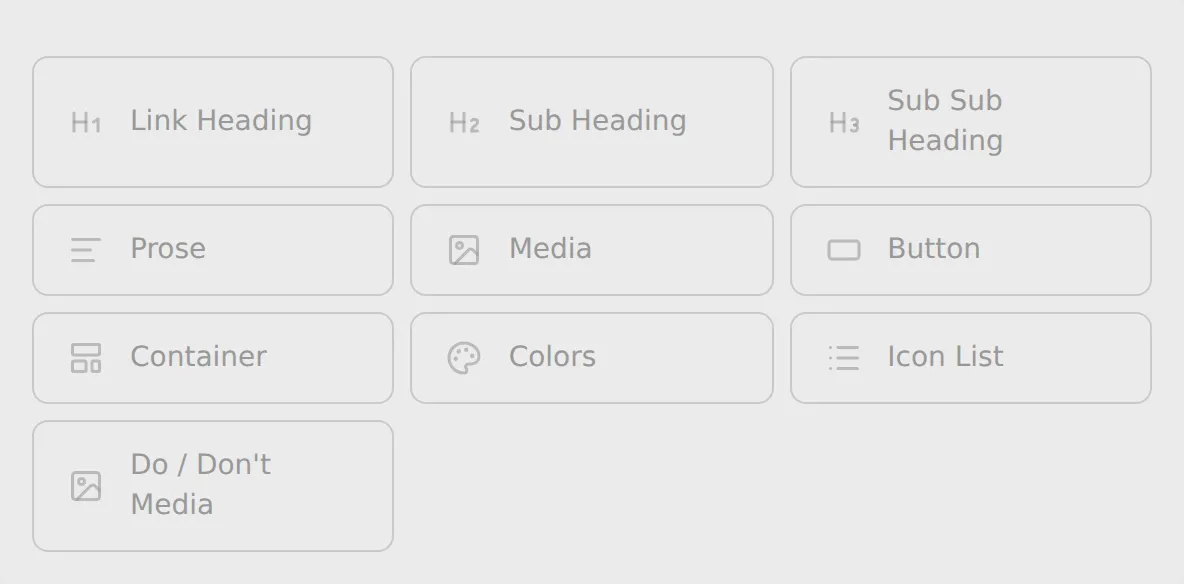 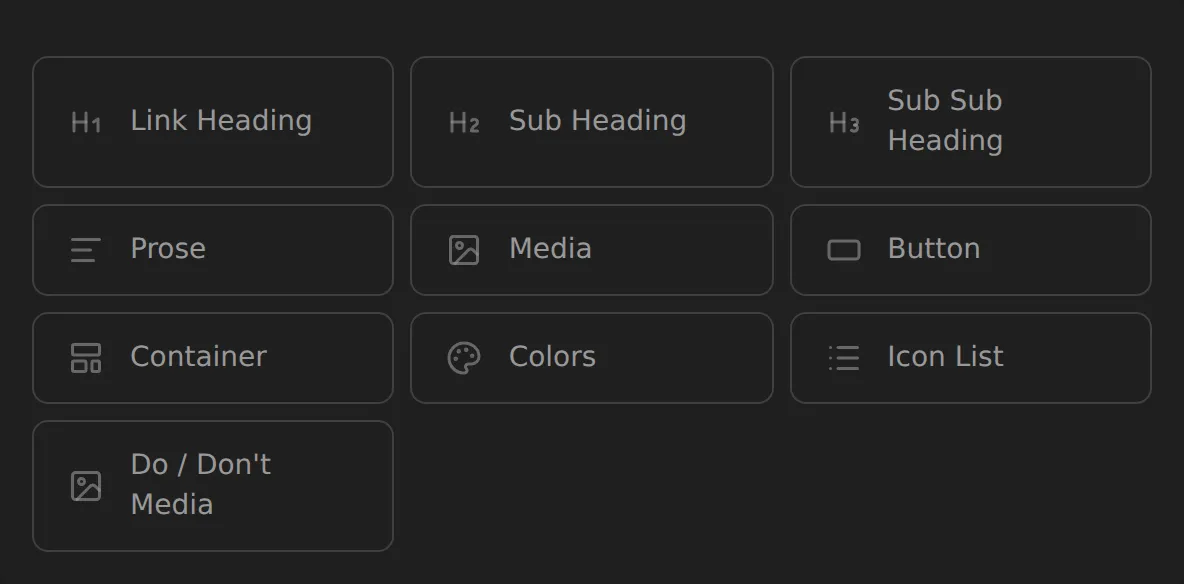
The new section is added with placeholder content so you can see what it looks like before you fill it in. Edit its text and settings just like any other section, then save when you are ready.
## Removing a section
[Section titled “Removing a section”](#removing-a-section)
To delete a section, hover over it to reveal its editing controls, then click the **Delete** button (the trash icon) in the upper-right of the section.
A confirmation dialog appears:
> Delete this section? It will be removed from the page now and deleted permanently when you save or publish.
Click **Delete** to confirm, or **Cancel** to go back. The section disappears from the page immediately in your working copy. It is only permanently removed from your site when you save or publish.
# Editing text
> Edit headings and rich text inline.
Your brand portal lets you edit text directly on the page — no separate editing panel to switch to. Just click on the text you want to change and start typing.
## Clicking to edit
[Section titled “Clicking to edit”](#clicking-to-edit)
**Heading text** (the large title at the top of each section) is plain, unformatted text. Click it once and the cursor appears right in the heading — type your changes and then click anywhere else to finish. There is no toolbar; headings are always a single line of plain text.
**Body copy** in a Prose section works differently. Click anywhere in the body text to activate the editor. The text cursor appears and you can start typing. When you are done, click anywhere outside the text area to save your changes to your working copy.
> 📷 TODO: screenshot — inline text cursor active in a Prose section
## Rich-text formatting
[Section titled “Rich-text formatting”](#rich-text-formatting)
When you are editing body copy in a Prose section, you can apply formatting by selecting the text you want to change. As soon as you highlight one or more characters, a floating toolbar appears just above your selection.
> 📷 TODO: screenshot — inline text toolbar on a selection
The toolbar offers these controls:
* **B** — Bold
* **I** — Italic
* **U** — Underline
* **🔗** — Link: add or edit a hyperlink on the selected text
* **•≡** — Bullet list
* **1≡** — Numbered list
* **H3** — Section sub-heading (medium heading)
* **H4** — Section sub-sub-heading (smaller heading)
* **Lg** — Large paragraph (a visually larger body style)
* **Li** — Lead-in (a bold introductory line style)
Click a button once to apply the style. Click it again to remove it.
## Saving your edits
[Section titled “Saving your edits”](#saving-your-edits)
Changes you make to text are saved to your **working copy** — a local draft held in the browser. They do not go live until you click **Save & Publish** in the toolbar. You can edit as much as you like and then review everything before committing.
If you want to throw away your unsaved edits, click **Discard Changes** in the top toolbar (it only appears when you have unsaved changes).
# Reordering sections
> Drag sections into a new order.
You can rearrange the sections on your page by dragging them or by using the reorder panel.
## Dragging sections
[Section titled “Dragging sections”](#dragging-sections)
Hover over any section to reveal its editing controls. In the upper-left you will see the **drag handle** (a grid-of-dots icon). Click and hold the drag handle, then drag the section up or down the page.
As you drag, a thin blue line appears between sections to show exactly where the section will land when you release. Drop it in the right place and the order updates immediately.
 
## Using the Reorder Sections panel
[Section titled “Using the Reorder Sections panel”](#using-the-reorder-sections-panel)
If you have many sections to reorganize, the **Reorder Sections** panel is easier than dragging on the page.
Click the **Reorder sections** button in the top toolbar (the numbered-list icon). A panel opens listing all your sections with their names and thumbnail previews. Each row has its own drag handle — drag rows up and down to rearrange the order, then close the panel.
Changes made in the panel take effect in your working copy right away. They go live when you save or publish.
# Section settings
> Adjust per-section options.
Many section types have configurable options — things like column count, display style, and image fit. These are accessed through the section’s settings modal.
## Opening settings
[Section titled “Opening settings”](#opening-settings)
Hover over any section to reveal its editing controls. If the section has settings available, you will see a **gear (⚙)** button in the upper-right of the section. Click it to open the settings modal for that section.
 
The modal is titled with the section’s type name (for example, “Colors Settings” or “Media Settings”).
> 📷 TODO: screenshot — settings modal
## What you can change
[Section titled “What you can change”](#what-you-can-change)
Settings vary by section type. Here is what each type offers:
### Colors
[Section titled “Colors”](#colors)
* **Columns** — how many color swatches appear per row (2, 3, or 4)
* **Label** — an optional text label for the color group
* **Show label** — toggle whether the label is visible
* **Collapsing layout** — toggle a layout mode that adjusts how swatches stack at smaller sizes
### Media
[Section titled “Media”](#media)
Settings are organized into two tabs:
**Display tab**
* **Square aspect ratio** — force the image into a square crop
* **Show caption** — show the image’s caption below it
* **Border** — add a subtle border around the image
* **Image fit** — choose between Contain (the full image fits within the space) or Cover (the image fills the space, cropping the edges)
**Link tab**
* **Link** — attach a URL to the image so clicking it navigates somewhere
### Container
[Section titled “Container”](#container)
* **Columns** — how many columns the container lays its children across
* **Flow** — whether children fill across rows or down columns first
* If the children inside the container support shared options (such as image fit for a row of Media sections), an **Apply to all items** section appears with those shared controls
### Icon List
[Section titled “Icon List”](#icon-list)
* **Default icon** — choose a default icon that applies to all list items without their own icon set
* **Show labels** — toggle whether item labels are visible
* **Stack label above text** — when labels are shown, place the label on its own line above the item text
## Changes preview live
[Section titled “Changes preview live”](#changes-preview-live)
Settings take effect in your working copy as soon as you change them — you can see the result behind the modal while it is still open. Close the modal when you are satisfied. Changes go live when you save or publish.
# Section types
> What each section type is for.
When you add a new section, you choose a type. Each type is designed for a specific kind of content. Here is a quick reference.
## Link Heading
[Section titled “Link Heading”](#link-heading)
A top-level section heading that also serves as a navigation anchor. Use it to start a new named section on your brand guide — the heading text appears in the page navigation so visitors can jump directly to it.
## Prose
[Section titled “Prose”](#prose)
Rich-text body copy: paragraphs, sub-headings, lists, and links. Use it for any descriptive, instructional, or explanatory text. Formatting controls (bold, italic, links, and more) appear when you select text.
## Colors
[Section titled “Colors”](#colors)
A display of brand color swatches arranged in a grid. Use it to document your color palette with names and hex values. You can configure the number of columns in the section settings.
## Icon List
[Section titled “Icon List”](#icon-list)
A list of labeled items, each with an optional icon. Use it for usage guidelines, feature lists, or do/don’t examples. The default icon and label display can be adjusted in the section settings.
## Media
[Section titled “Media”](#media)
A single image or figure with an optional caption and link. Use it to showcase a brand asset, photograph, or graphic example. Display options such as aspect ratio, border, and image fit are available in the section settings.
## Container
[Section titled “Container”](#container)
A layout wrapper that groups other sections side by side in one or more columns. Use it to display related content — for example, two Media sections — in a multi-column arrangement. Column count and flow direction are set in the section settings.
## Spacer
[Section titled “Spacer”](#spacer)
A block of vertical whitespace. Use it to add breathing room between sections when you need more visual separation than the default spacing provides.
> **Building or developing the site?** See the [Section schema reference](/developer/reference/section-schema-reference/) for each section type’s exact fields.
# The editor at a glance
> A tour of the editing interface.
When you sign in, your portal looks exactly like the live site — the same layout, fonts, and colors — but with an editing layer on top. This overlay is called the **editor chrome**. It appears when you hover over a section or toggle editing on, and disappears again when you step back to view your work.
 
## The toolbar
[Section titled “The toolbar”](#the-toolbar)
A bar runs across the top of the screen while you are in edit mode. On the left side you will find the primary action button:
* **Save & Publish** — saves your changes to GitHub and triggers a live rebuild. Use this when you are ready for your changes to go live.
* **Publish** — appears when you have saved changes that are not yet on the live site. Pushes them live without requiring a new round of edits.
* **Up to date** — shown when there is nothing new to publish.
When you have unsaved local edits, a **Discard Changes** button also appears on the left, so you can revert to the last published state if needed.
The center of the toolbar shows status messages — “Saving changes…”, “Publishing (0:12)”, “Published in 0:45” — so you know where things stand without leaving the page.
On the right side of the toolbar you will find four icon buttons:
* **Reorder sections** — opens a panel where you can drag sections into a different order.
* **Media library** — opens your image library for uploading and managing assets.
* **Pages** — manage the pages on your site (add, rename, reorder, or archive).
* **Site settings** — adjust site-wide settings such as your site name, brand colors, and typography.
There is also a **Show Controls / Hide Controls** toggle that pins the per-section editing controls on screen at all times, which can be helpful when you are making a lot of changes across multiple sections.
## The floating edit button
[Section titled “The floating edit button”](#the-floating-edit-button)
In the bottom-right corner there is a small circular button. When you are editing, the button shows an eye icon — click it to switch to view mode. When you are viewing, it shows a pencil icon — click it to return to editing. In view mode you can preview how your content looks without any editor chrome in the way. A “Published / Unpublished” switcher appears at the top so you can compare what is live right now with what you are about to publish.
## Per-section controls
[Section titled “Per-section controls”](#per-section-controls)
Hover over any section to reveal its editing controls, which appear just above the section:
* **Drag handle** (top-left) — drag it up or down to reorder the section on the page.
* **Insert ( + )** — adds a new section immediately before this one. On wide screens this appears to the left of the drag handle; on smaller screens it sits just below it.
* **Status indicator** — shows whether the section is **draft**, **live**, or **archived**, and lets you change it.
* **Audience indicator** — controls which visitor groups can see this section.
* **Settings (gear)** — opens a settings panel for this section’s options (layout, colors, and similar configuration choices).
* **Delete** — removes the section. You will be asked to confirm before it is removed.
## Inline editing
[Section titled “Inline editing”](#inline-editing)
To edit text, simply click on it. Most text fields become editable right in place — headings, body copy, captions, and similar content. The page layout does not shift or jump while you type. When you are done, click anywhere outside the field or press Escape.
# Logging in
> How to sign in to edit your site.
To open the editor, go to `yoursite.com/edit`. If you are not already signed in, you will be taken to the sign-in screen.
> 📷 TODO: screenshot — the /edit/login screen
## Sign-in methods
[Section titled “Sign-in methods”](#sign-in-methods)
Your site uses one of two sign-in setups, chosen when the site was set up by your developer.
### Email and OAuth (Supabase auth)
[Section titled “Email and OAuth (Supabase auth)”](#email-and-oauth-supabase-auth)
Sites set up with full authentication show a sign-in form with an **Email** field and a **Password** field. If your developer has enabled social sign-in, you will also see a **Continue with Google** or **Continue with GitHub** button above the form.
To sign in with email and password, enter the address your developer invited you with and the password you set when you accepted the invite. To sign in with Google or GitHub, click the appropriate button and complete the authorization flow in the pop-up. You will be redirected back to your portal once authentication succeeds.
If you have forgotten your password, click **Forgot password?** beneath the password field. Enter your email address and click **Send reset link** — you will receive an email with a link to set a new password.
### Password only
[Section titled “Password only”](#password-only)
Some sites use a simpler shared-password setup. The sign-in screen shows only a **Password** field. Enter the editor password your developer gave you and click **Sign In**.
## First-time access
[Section titled “First-time access”](#first-time-access)
If you were invited by your developer, you will receive an email with a setup link. Clicking that link takes you to `/edit/set-password`, where you can choose your password before signing in for the first time.
## Who can edit
[Section titled “Who can edit”](#who-can-edit)
Access is controlled by your developer. There are two editor roles:
* **Owner** — full access, including site settings and audience management.
* **Editor** — can edit content and publish, but does not manage site-level settings.
If you cannot sign in or see a “You don’t have access to this site” message, contact the person who set up your portal.
# Your brand portal
> What your brand portal is and how editing works.
Your brand portal is a single-page website that lives at your own web address. It brings together your brand guide and asset library — colors, typography, logos, photography, and copy — into one place your team and partners can visit any time.
## Two ways to experience your portal
[Section titled “Two ways to experience your portal”](#two-ways-to-experience-your-portal)
Every portal has two distinct modes: **viewing** and **editing**.
**Viewing** is what everyone else sees. When a visitor opens your site they get a fast, clean page with no editor controls — just your content, rendered directly by the server. There is nothing for visitors to interact with on the editing side; the editing interface is completely separate.
**Editing** is what you see when you sign in at `/edit`. The page looks like your live site, but with controls layered on top that let you update text, swap images, add sections, and adjust settings. Only people you have authorized as owners or editors can reach the editing interface.
## How your changes reach the live site
[Section titled “How your changes reach the live site”](#how-your-changes-reach-the-live-site)
The portal keeps your content in a GitHub repository that belongs to your organization. When you make changes in the editor and click **Save & Publish**, the portal writes your updates to that repository. A short rebuild runs automatically, and your changes appear on the live site once it completes.
Until you publish, nothing you do in the editor affects what visitors see. You can draft changes, step away, and come back — your work stays saved in the editor, out of sight of anyone visiting the public site.
# Troubleshooting & FAQ
> Answers to common editing questions.
Quick answers to the questions editors ask most often. If something isn’t covered here, reach out to the person who set up your portal.
***
## My change isn’t showing up on the live site
[Section titled “My change isn’t showing up on the live site”](#my-change-isnt-showing-up-on-the-live-site)
The most common reason is that the change hasn’t been published yet — saving and publishing are two separate steps.
* **Did you publish?** Clicking **Save** (or the small **Save** option in the dropdown) stores your changes as a draft. They only go live when you click **Publish** or **Save & Publish**. Check the toolbar: if it shows **Publish**, your content is saved but not yet live.
* **Is the build still running?** After you publish, Netlify rebuilds your site, which typically takes two to four minutes. The toolbar shows **Publishing (m:ss)** in orange while it’s in progress, and turns green when done. Give it a moment before checking the live site.
* **Did the build fail?** If the toolbar shows **Publish failed** in red, the rebuild didn’t complete. Try publishing again, or contact your site administrator.
For a full explanation of the publish sequence, see [How changes go live](../publishing/how-changes-go-live/).
***
## I can’t log in
[Section titled “I can’t log in”](#i-cant-log-in)
A few things to check:
* **Are you at the right URL?** The editor lives at `yoursite.com/edit`. Visiting the main site address won’t show a sign-in screen.
* **Are you using the right sign-in method?** Your site uses either a shared password or email-and-password login — whichever your developer set up. If you see only a **Password** field, enter the editor password you were given. If you see an **Email** and **Password** field, use the credentials from your invite.
* **Were you invited?** If you received an invitation email, click the link in that email first. It takes you to a setup screen where you create your password before signing in for the first time.
* **Forgotten your password?** On sites with email login, click **Forgot password?** beneath the password field to receive a reset link.
* **“You don’t have access to this site”?** Access is controlled by your site administrator — contact them to have your account created or restored.
See [Logging in](../getting-started/logging-in/) for a full walkthrough.
***
## My image won’t upload
[Section titled “My image won’t upload”](#my-image-wont-upload)
Two things to check:
* **File format** — the media library accepts JPEG, PNG, WebP, GIF, and most other common image formats, as well as video files. Unusual or proprietary formats may be rejected.
* **File size** — files larger than **5 MB** are not accepted. If your image is over the limit, compress or resize it first, then try again. (Your site administrator can adjust this limit if needed.)
When a file is rejected, you’ll see a notice explaining which file was too large or couldn’t be processed.
See [Uploading images](../media-library/uploading-images/) for more detail.
***
## I edited the wrong section — how do I undo?
[Section titled “I edited the wrong section — how do I undo?”](#i-edited-the-wrong-section--how-do-i-undo)
It depends on whether you’ve saved yet.
* **If you haven’t saved:** click **Discard Changes** in the toolbar to throw away all unsaved edits and return to the last saved state. The editor will ask you to confirm before discarding.
* **If you saved but haven’t published:** your change is in the repository but not live. You can open the section and edit it back to what it was, then save again. Alternatively, set the section to **Draft** status to hide it from visitors while you decide what to do.
* **Remember:** nothing is visible to visitors until you publish. Saved-but-unpublished content gives you a window to review and correct before anything goes live.
See [Saving your changes](../publishing/saving-your-changes/) and [Section status](../audiences-visibility/section-status/) for more on how drafts and discarding work.
***
## A section isn’t visible on the live site even after publishing
[Section titled “A section isn’t visible on the live site even after publishing”](#a-section-isnt-visible-on-the-live-site-even-after-publishing)
Check the section’s status. If a section is set to **Draft** or **Archived**, it won’t appear for visitors even after you publish.
* Hover over the section to reveal its controls.
* Look at the **status pill** in the section header — it shows the current status by name.
* If it says **Draft** or **Archived**, click the pill and choose **Live**, then save and publish again.
See [Section status](../audiences-visibility/section-status/) for details on how each status behaves.
# Inserting & swapping media
> Place images in a Media section.
A **Media section** displays a single image or video. You can insert a new one from the library or swap an existing one for a different image at any time.
## Inserting an image into a new Media section
[Section titled “Inserting an image into a new Media section”](#inserting-an-image-into-a-new-media-section)
1. Add a **Media** section to your page (see [Adding & removing sections](/editor/editing-content/adding-removing-sections/)).
2. The new section appears as an empty placeholder. Click on it to open the media library.
3. The library opens in **select mode** — browse or search for the image you want.
4. Click any thumbnail to insert that image into the section.
> 📷 TODO: screenshot — media picker
The section updates immediately with your chosen image. The change is saved to your working copy; remember to save or publish when you’re ready to make it live.
## Swapping an image
[Section titled “Swapping an image”](#swapping-an-image)
To replace the current image in a Media section with a different one:
1. Click anywhere on the image in the editor.
2. The media library opens again in select mode.
3. Click the thumbnail of the image you want to use instead.
The section switches to the new image right away. The previous image stays in your library — it is not deleted when you swap it out.
## Uploading and inserting in one step
[Section titled “Uploading and inserting in one step”](#uploading-and-inserting-in-one-step)
You do not have to upload first. When the library is open in select mode, the upload zone is available at the top of the panel. Drop or pick a file and it will be processed and added to the library. Once processing is complete, the new image appears in the grid and you can click it to insert it.
# Managing your library
> Browse and reuse uploaded images.
Every image and video you upload is stored in your media library. You can browse, search, reuse, and delete files from a single place.
## Browsing your library
[Section titled “Browsing your library”](#browsing-your-library)
Open the full media library manager by clicking the **Media library** button (the image icon) in the editor toolbar at the top of the page. The library grid shows every file you’ve uploaded, with square thumbnails and the filename on hover.
> Note: clicking an image **inside a Media section** opens a picker for choosing or swapping that section’s image — that is the insert/swap flow, not the full manager, so Delete, usage counts, and batch-select are not available there.
> 📷 TODO: screenshot — media library grid
Use the **search box** to filter by filename, or use the type filter to show only images, animated files, or videos.
## Reusing images across sections
[Section titled “Reusing images across sections”](#reusing-images-across-sections)
An image you upload once can be placed in as many sections as you like — just select it from the library whenever you add or swap a Media section. Each section holds a reference to the image by its ID; the image file itself is stored once.
## Usage counts
[Section titled “Usage counts”](#usage-counts)
In the library’s manage view, hovering over a thumbnail shows a **usage count** — for example, “Used 3×” — so you can see at a glance which images are in use and which are not.
## Deleting images
[Section titled “Deleting images”](#deleting-images)
To delete one or more images:
1. Click the thumbnails you want to remove. A circle indicator appears on each selected item.
2. Click the **Delete** button that appears in the toolbar.
3. If any of the selected images are currently used in a section, a confirmation prompt appears. Confirming removes them from those sections and deletes the files.
Deletion takes effect in your working copy and is committed to your site’s repository when you save.
## How images are served
[Section titled “How images are served”](#how-images-are-served)
Once published, your images are served through your site’s media route (`/api/media/{id}/{width}.webp`). The browser receives the size that best fits the visitor’s screen — 640 px, 1 080 px, or 1 920 px wide — rather than always downloading the largest version.
Images are cached at the CDN level so that each size variant is fetched from storage roughly once and delivered quickly on repeat visits.
## Image IDs
[Section titled “Image IDs”](#image-ids)
Behind the scenes, every image has a 16-character ID derived from a hash of its contents. Two uploads of the same file produce the same ID, so the library will not store duplicates. You don’t need to work with IDs directly; they are used internally to wire sections to the right image.
# Uploading images
> Add images to your media library.
The media library is where all images and videos on your site live. Uploading a file adds it to your library so you can place it in any Media section — or swap it in later without re-uploading.
## How to open the upload area
[Section titled “How to open the upload area”](#how-to-open-the-upload-area)
Open the media library from any Media section in the editor. The upload area appears at the top of the panel that slides open.
> 📷 TODO: screenshot — media upload
## Uploading a file
[Section titled “Uploading a file”](#uploading-a-file)
You have two options:
* **Drag and drop** — drag one or more files from your desktop and drop them onto the dashed upload zone.
* **Click to browse** — click anywhere in the upload zone to open a file picker and select files from your computer.
Both accept images (JPEG, PNG, WebP, GIF, and most other common formats) and video files.
## What happens after you drop a file
[Section titled “What happens after you drop a file”](#what-happens-after-you-drop-a-file)
Your browser processes the file immediately — no waiting for a server round-trip:
1. The image is converted to **WebP format** in your browser.
2. Three sizes are generated automatically: **640 px**, **1 080 px**, and **1 920 px** wide. The right size is served to each visitor depending on their screen, so pages stay fast.
3. The processed file is held locally until you save. Once you save, it is stored in your site’s GitHub repository.
After processing finishes, the image appears in the library grid below the upload zone.
## File size limit
[Section titled “File size limit”](#file-size-limit)
Files larger than **5 MB** are rejected and will not upload. If a file is too large, you’ll see a notice — for a single over-limit file it names the file; if several are rejected at once, it shows how many. Compress or resize the image first, then try again.
(This limit is a default and can be adjusted by your site administrator.)
## Alt text
[Section titled “Alt text”](#alt-text)
Each image in the library has an **alt text** field directly below its thumbnail. Alt text describes the image for screen readers and search engines. Fill it in after uploading — you can update it at any time from the library.
# How changes go live
> What happens after you publish.
When you click **Publish** or **Save & Publish**, your changes do not appear on the live site instantly — a short automated process runs first. This page explains what happens and what to expect.
## The publish sequence
[Section titled “The publish sequence”](#the-publish-sequence)
1. **Your changes are written to GitHub.** The portal commits your content updates to the site’s GitHub repository. Only the content files you edited (section content, site settings, media) are written — the rest of the repository is untouched.
2. **Netlify detects the commit and starts a rebuild.** Your site is hosted on Netlify, which watches the repository for new commits. When the publish commit arrives, Netlify automatically kicks off a new build of your site.
3. **The live site updates.** Once the build finishes, your published content is live and visible to visitors.
The whole sequence typically takes **two to four minutes**, depending on the size of your site.
## Watching the build progress
[Section titled “Watching the build progress”](#watching-the-build-progress)
The editor toolbar shows live build status while a publish is in progress.
While the build is running, you will see **Publishing (m:ss)** in orange at the center of the toolbar, with a timer counting up.
When the build finishes successfully, the status changes to **Published in m:ss** in green. This message fades away on its own, or you can dismiss it with the × button.
If the build fails, the status shows **Publish failed** in red.
   
## What to do if publishing seems stuck
[Section titled “What to do if publishing seems stuck”](#what-to-do-if-publishing-seems-stuck)
Build times vary. If the **Publishing** timer reaches five minutes or more without completing, something may have gone wrong with the Netlify build.
In that case:
* **Check back in a few minutes.** Occasional build delays are normal.
* **Reload the editor.** If the build actually completed while the status indicator was out of sync, reloading will clear it.
* If the problem persists, contact your site administrator. They can check the build log in Netlify directly.
## Saving without publishing
[Section titled “Saving without publishing”](#saving-without-publishing)
If you are not ready to make your changes live, you can save them as a draft first. See [Saving your changes](./saving-your-changes) for how to use the **Save** option to write your work to GitHub without triggering a rebuild.
# Saving your changes
> How saving and publishing work.
When you edit content in the portal, your changes move through two steps before visitors can see them: first they are **saved** (written to your site’s repository as a draft), and then they are **published** (made live). Understanding this distinction helps you work confidently without worrying about accidentally sending half-finished content to your live site.
## Your working copy
[Section titled “Your working copy”](#your-working-copy)
As you type and make changes in the editor, your edits are automatically kept in your browser — even before you click Save. This means if your browser tab closes unexpectedly or you step away, your unfinished work is not lost. When you return to the editor, you will see a prompt offering to restore your unsaved changes or start fresh from the last saved state.
> 📷 TODO: screenshot — restore-unsaved-changes dialog
Your edits stay in this browser working copy until you save them.
## The save bar
[Section titled “The save bar”](#the-save-bar)
The save controls appear in the toolbar at the top of the editor. What you see depends on the state of your changes.
### When you have unsaved edits
[Section titled “When you have unsaved edits”](#when-you-have-unsaved-edits)
When you have made changes that have not been saved yet, the toolbar shows a **Save & Publish** button. Clicking it does two things at once: it writes your changes to the site’s GitHub repository and immediately publishes them to your live site.
> 📷 TODO: screenshot — toolbar with “Save & Publish” button and “Discard Changes”
If you want to save your work without making it live yet, click the small arrow on the right side of the **Save & Publish** button to reveal a **Save** option. Choosing **Save** commits your changes to the repository as a draft — they are safely stored on GitHub but remain invisible to visitors until you publish.
After a save-only action, the toolbar status briefly shows **Saved** in green to confirm the operation completed.
### When changes are saved but not yet published
[Section titled “When changes are saved but not yet published”](#when-changes-are-saved-but-not-yet-published)
Once you have saved a draft, the button changes to **Publish**. Your content is in the repository waiting to go live. Clicking **Publish** promotes that draft to the live site and triggers a rebuild.
### When everything is up to date
[Section titled “When everything is up to date”](#when-everything-is-up-to-date)
When your live site already reflects everything in the repository, the button shows **Up to date** and is grayed out. There is nothing pending.
## Discarding changes
[Section titled “Discarding changes”](#discarding-changes)
If you have unsaved edits in your browser and want to undo all of them, a **Discard Changes** button appears next to the save button. Clicking it opens a confirmation prompt. Confirming drops the edits you haven’t saved yet and reloads the editor from your last saved version.
> 📷 TODO: screenshot — “Discard Changes” confirmation modal
Discarding cannot be undone, so the editor asks you to confirm before proceeding.